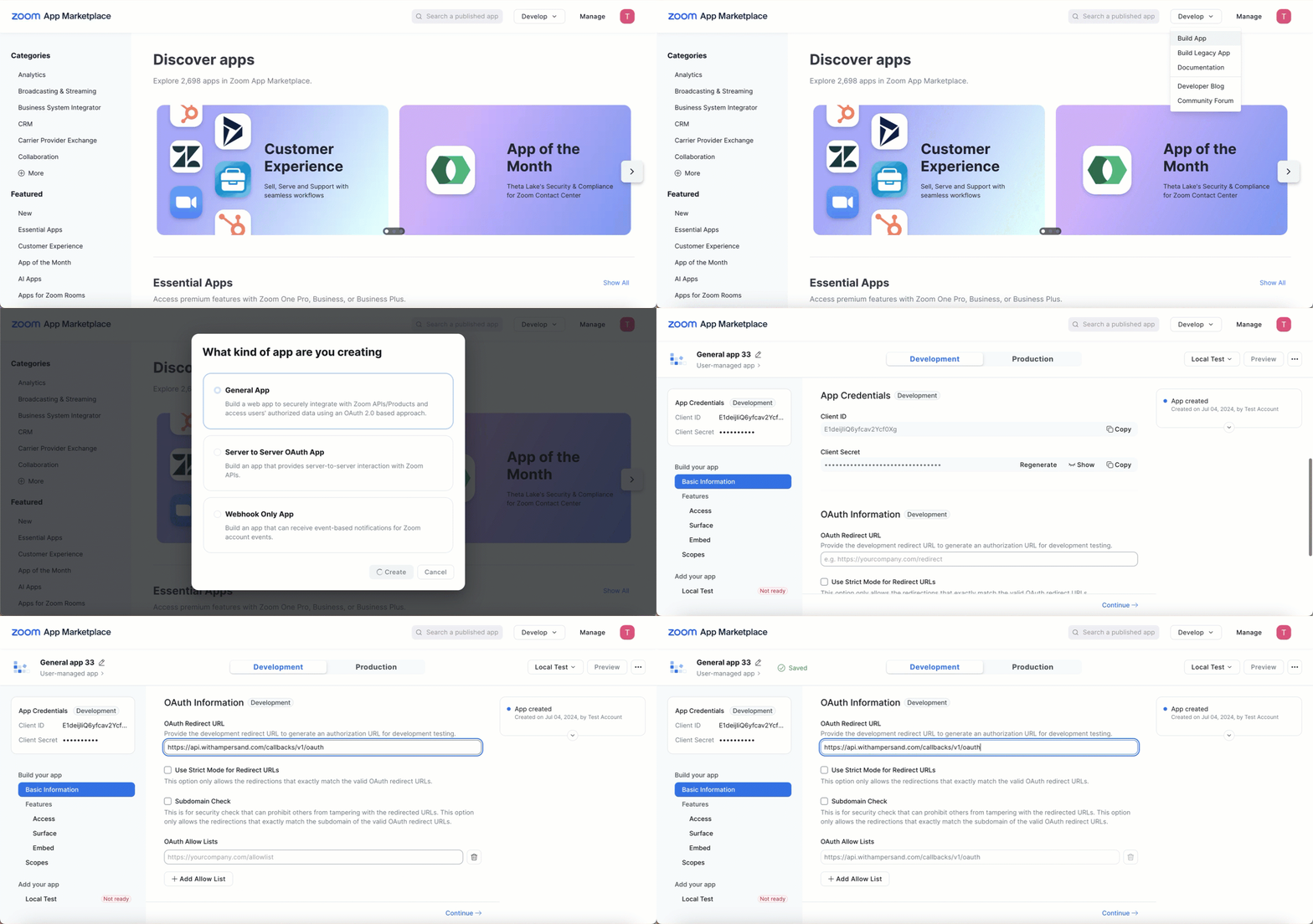
Connect Zoom to capture meeting recordings in AmpUp
Connect Zoom to AmpUp to automatically capture meeting recordings and participant information. This integration is ideal if you’re not using a dedicated conversation intelligence platform like Gong or Clari Copilot.
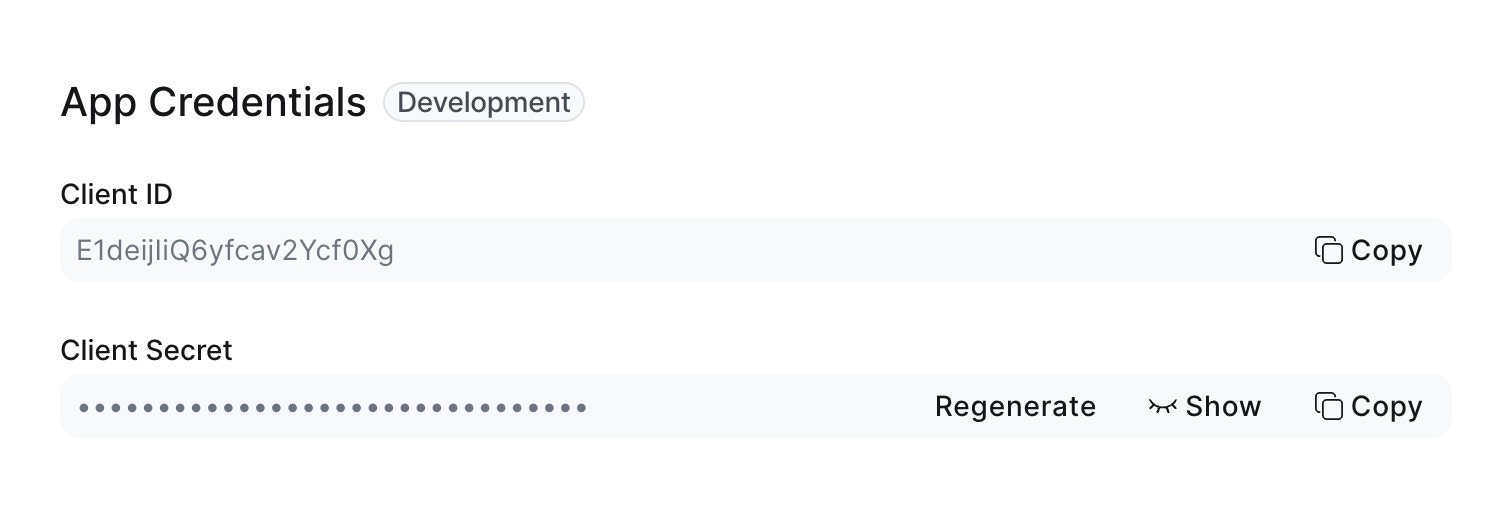
These credentials are required to establish a secure link between Zoom and AmpUp. Once connected, your data will be encrypted in transit and at rest, and synced periodically to keep AmpUp up to date with your latest recordings.
If you already use Gong or Clari Copilot, you likely don’t need the Zoom integration—your calls are already captured through those platforms.
Click the Connect Zoom button. AmpUp will prompt you to enter the Client ID and Client Secret from the Zoom app you created above. AmpUp securely stores these credentials and uses them to establish the OAuth connection.
3
Authorize with Zoom
After entering your credentials, you’ll be redirected to Zoom. Sign in with your account and authorize AmpUp to access your recordings.
4
Authorize AmpUp
Review the permissions and click Authorize.AmpUp requests:
View and manage meetings
View and manage recordings
View user information
5
Configure Recording Settings
Select which users and meeting types to capture.
6
Enable Cloud Recording
If not already enabled, turn on cloud recording in Zoom:
Go to Zoom Admin Portal → Account Settings → Recording
No. If you use Gong or Clari Copilot, your Zoom meetings are already captured through those integrations. The direct Zoom integration is primarily for teams not using a conversation intelligence platform.
Does this work with Zoom Phone?
Currently, only Zoom Meetings recordings are supported. Zoom Phone integration is on our roadmap.
What about Google Meet or Microsoft Teams?
Microsoft Teams integration is available — see Microsoft Teams. Google Meet support is on our roadmap.
Are breakout rooms recorded?
Breakout room recordings depend on your Zoom settings. If cloud recording is enabled for breakout rooms, they will sync to AmpUp.