

Prerequisites
Before connecting Microsoft Dynamics 365, ensure you have:Microsoft Dynamics 365 admin access
AmpUp admin access for your organization
Setup Instructions
Watch the video below for a step-by-step walkthrough of connecting Microsoft Dynamics 365 to AmpUp: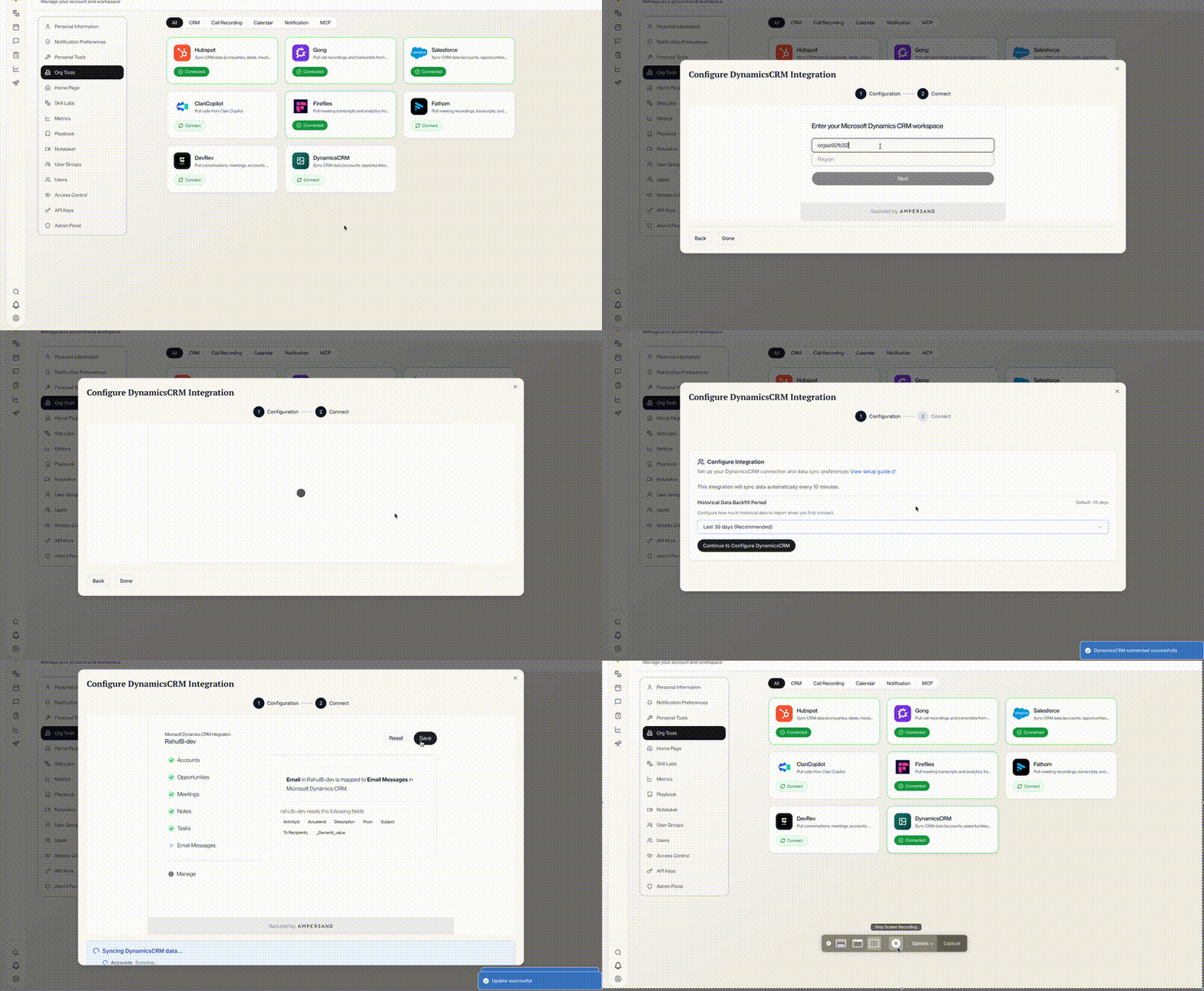
Microsoft Dynamics 365 Setup Guide
Connect Microsoft Dynamics 365
1
Navigate to Integrations
In AmpUp, go to the Microsoft Dynamics 365 tile on the AmpUp Tools page and click Connect.
2
Authenticate with Microsoft
You’ll be redirected to Microsoft’s login page. Sign in with your Dynamics 365 admin credentials and grant AmpUp the requested permissions.
3
Configure Objects
Once connected, click Continue to Configure. For each object listed, click Save. These are the objects AmpUp will pull from Dynamics 365.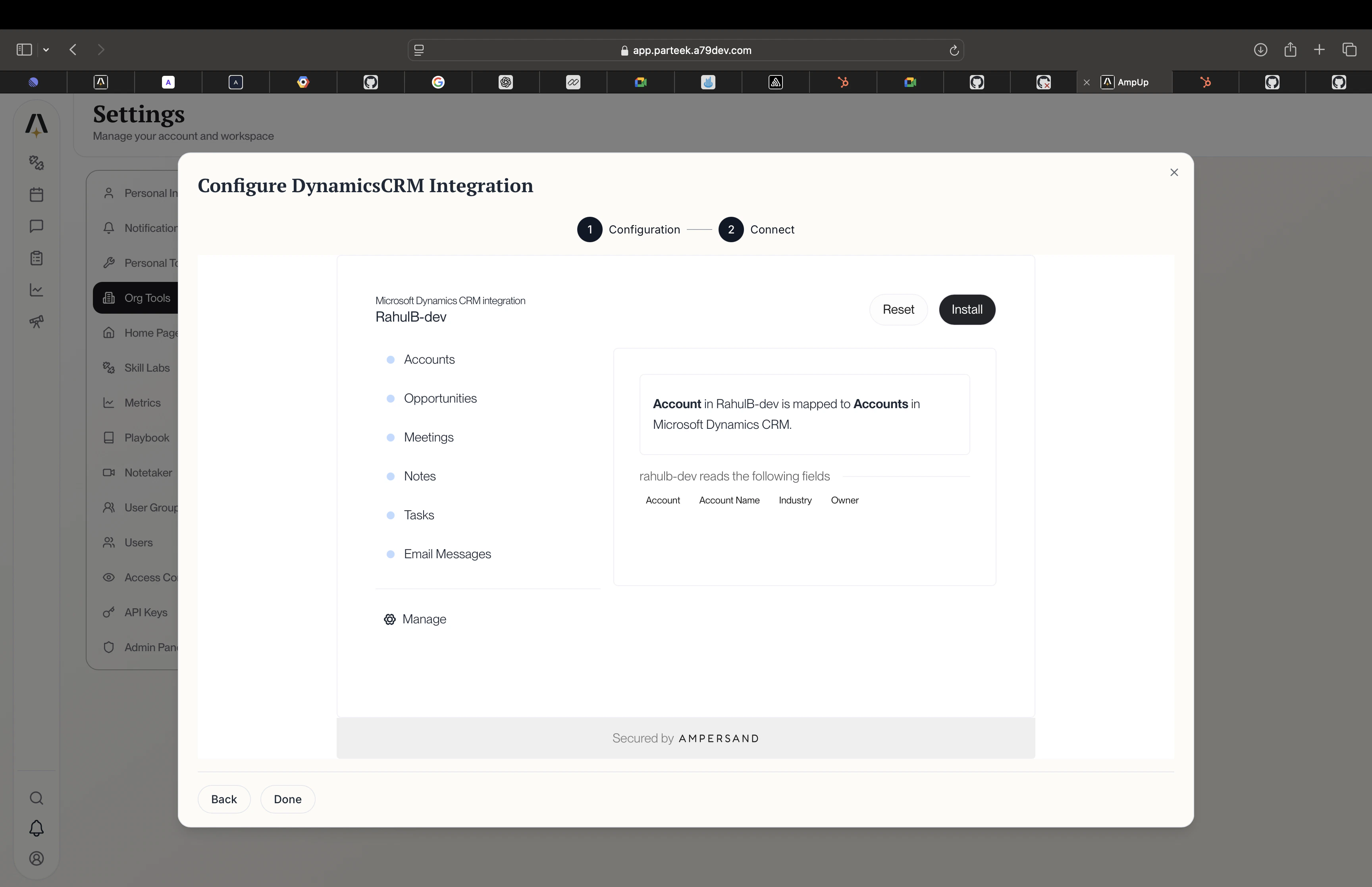
Microsoft Dynamics 365 Configuration
What Data Syncs
From Dynamics 365 to AmpUp
Troubleshooting
Authentication fails
Authentication fails
- Verify you’re signing in with an account that has Dynamics 365 admin permissions
- Check that your Dynamics 365 instance is active and accessible
- Ensure third-party app access is not blocked by your Azure AD policies
Missing records after sync
Missing records after sync
- Confirm your Dynamics 365 user has access to the records in question
- Check that the objects are enabled in the AmpUp configuration
- Initial sync may take a few hours for large datasets
Connection drops or errors
Connection drops or errors
- Re-authenticate from Settings → Integrations → Microsoft Dynamics 365
- Check with your IT team that no Azure AD consent policies are revoking the connection
Disconnect Microsoft Dynamics 365
To remove the integration:- Go to Settings → Integrations → Microsoft Dynamics 365
- Click Disconnect
- Confirm disconnection