Connect HubSpot CRM to sync your sales data with AmpUp
Connect your HubSpot CRM to AmpUp to sync contacts, companies, deals, and engagement data. AmpUp uses this data to provide context-aware coaching and track the impact of improved sales behaviors on your pipeline.
These credentials are required to establish a secure link between HubSpot and AmpUp. Once connected, your data will be encrypted in transit and at rest, and synced periodically to keep AmpUp up to date with your latest CRM data.
Before connecting HubSpot to AmpUp, you’ll need to create a HubSpot app to obtain your Client ID and Client Secret. There are two methods depending on when your HubSpot developer account was created.
Legacy Apps (Accounts after Sept 2025)
New Project Apps (Recommended)
Legacy Apps (Accounts before Sept 2025)
For developer accounts created after September 2025, use this method.
1
Navigate to Legacy Apps
Log into your HubSpot developer account and go to Development → Legacy apps.
Navigate to Legacy apps
2
Create a Legacy App
Click Create → select Public.
Create a legacy public app
3
Configure the app
Enter a name for your public app, then go to the Auth tab.Add this redirect URL:
https://api.withampersand.com/callbacks/v1/oauth
Click Create app.
4
Add scopes
Go to the Scopes section, click Add new scope, and add the following scopes:
In AmpUp, go to Settings → Integrations → HubSpot.
2
Enter Provider Credentials
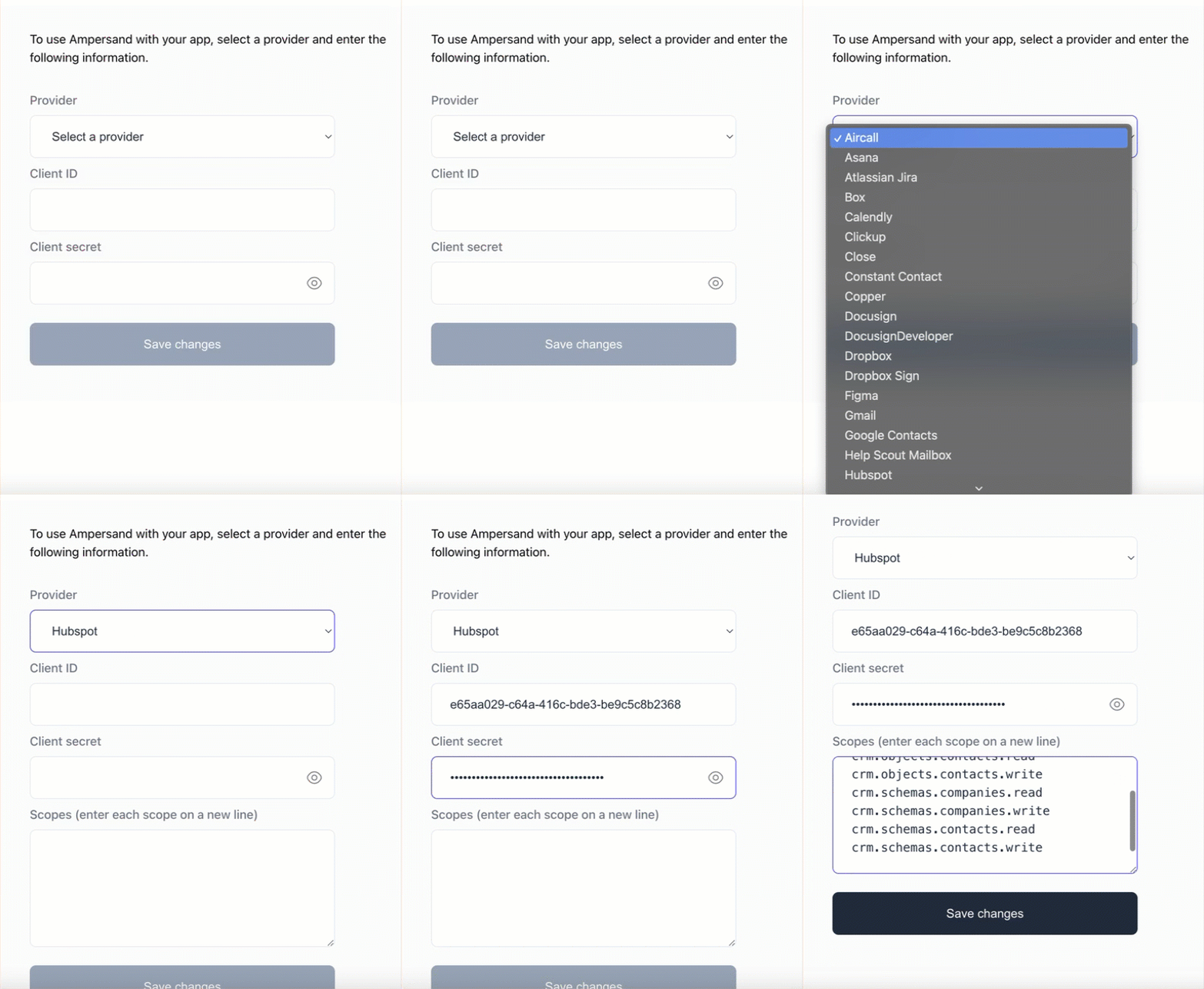
Click the Connect HubSpot button. AmpUp will prompt you to enter the Client ID and Client Secret from the HubSpot app you created above. AmpUp securely stores these credentials and uses them to establish the OAuth connection.
HubSpot Configuration
3
Authorize with HubSpot
After entering your credentials, you’ll be redirected to HubSpot. Sign in with your admin credentials.
4
Select Your Portal
If you have access to multiple HubSpot portals, select the one you want to connect.
5
Authorize AmpUp
Review the permissions and click Connect app.AmpUp requests these scopes: