Connect Salesforce to AmpUp: what syncs, how often, what AmpUp writes back, and how to fix common setup issues
Connect your Salesforce org to AmpUp to sync accounts, opportunities, and activity data. AmpUp uses this context for pre-call briefs, coaching, and practice, and logs a summary of every analyzed meeting back to Salesforce.
Follow the prompts in Salesforce to complete the installation.
2
Configure Objects in AmpUp
Go to the Salesforce tile on the AmpUp Tools page and click Continue to Configure.
Salesforce Configuration
For each object listed, click Save. These are the objects AmpUp will pull from Salesforce.
3
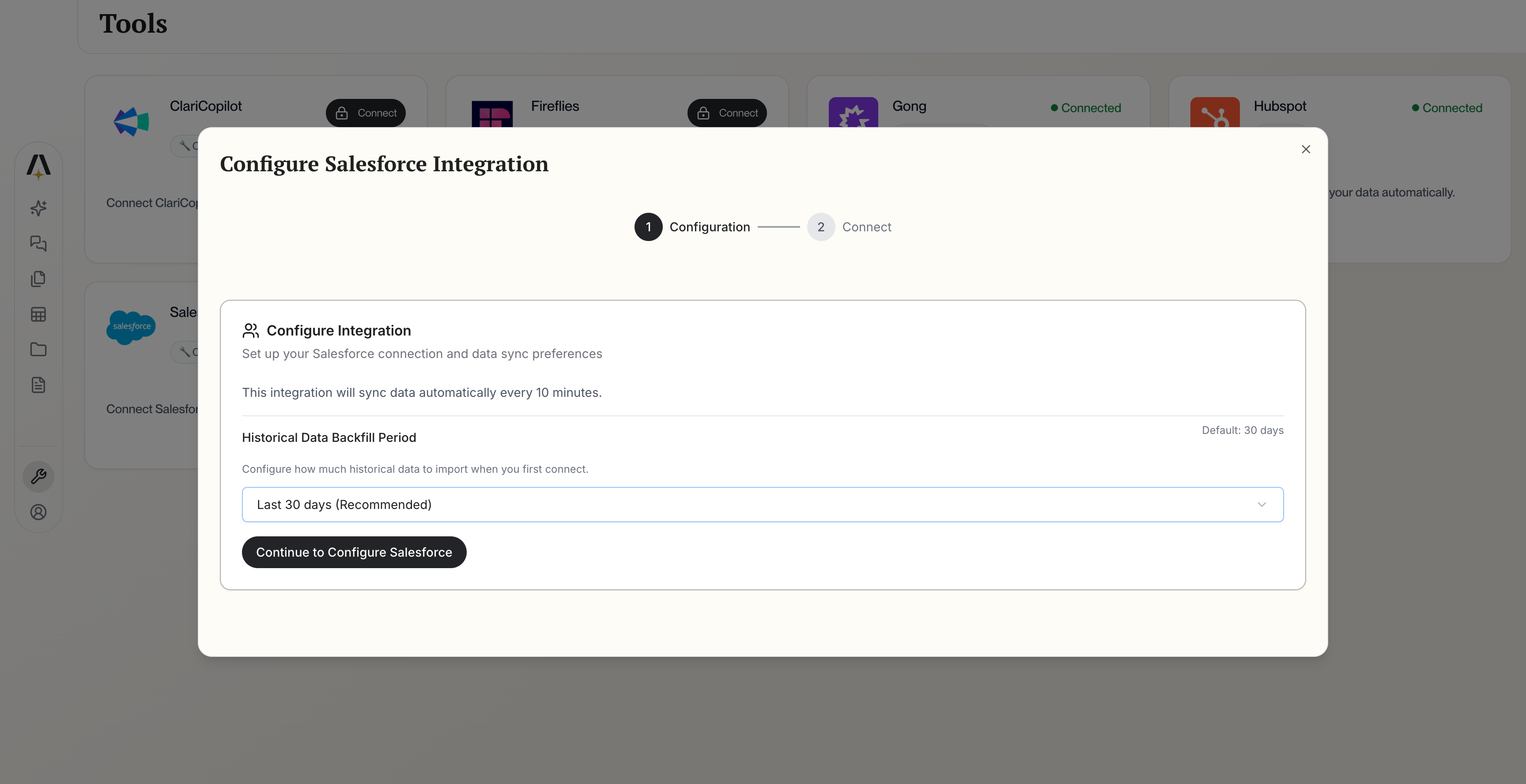
Choose how much history to import
Pick a backfill window for the first sync. The default is 30 days; you can choose anything from 1 day to a full year, a custom range, or full history. Longer windows take longer to finish the first import.
4
Set up post-meeting updates (optional)
Choose which Opportunity, Account, and Contact fields AmpUp should fill in after meetings, and give each one a short instruction describing what to extract. If you skip this step, AmpUp uses the default fields listed in What AmpUp writes back.
Name, industry, type, owner, billing city and country
Opportunity
Deal context, stage, and forecast inputs
Name, amount, close date, stage, probability, forecast category, type, lead source, next step, description, account, owner, campaign, created and last-modified dates
Event
Meetings, linked to the opportunity or account they relate to
Subject, date, end time, description, location, owner, related contact and record, event subtype
Task
Activity history for a deal
Subject, description, status, priority, due date, type, owner, related contact and record
EmailMessage
Email history for a deal
Subject, sender and recipients, date, body, thread, related record
Note
Existing notes on a record
Title, body, owner, parent record
AmpUp also looks up Users (to match record owners to AmpUp users by email) and Contacts and Opportunity Contact Roles (to identify meeting attendees and buying-committee roles) when it needs them, rather than on a schedule.
Direction: Salesforce is the system of record. AmpUp reads the objects above and writes back only the items listed in the next section.
Frequency: AmpUp checks Salesforce for new and changed records every 20 minutes. A change made in Salesforce appears in AmpUp within about 20 minutes.
First sync: after you connect, AmpUp imports records from the backfill window you chose. If a meeting refers to an opportunity or account that has not synced yet, AmpUp fetches that record on demand.
Refreshing a single deal: from a deal in AmpUp you can refresh it on demand, which re-pulls its contact roles, contacts, tasks, events, emails, and notes.
After AmpUp analyzes an external meeting, it adds one Salesforce Note with the meeting title, date, attendees, outcome, summary, key points, and links to the AmpUp meeting and recording. The note is attached to the meeting’s opportunity, or to the account or contact when there is no opportunity. Each meeting is logged once.
Post-meeting field updates
AmpUp extracts values for your mapped fields from each meeting and creates an Update CRM task. You review and edit the values, then approve them to write them to Salesforce.When a rep completes a voice debrief, AmpUp writes the extracted values directly, without the review step. This is controlled by Auto-update after meeting debrief in the Salesforce settings, which is on by default.If you have not mapped your own fields, AmpUp updates these by default:
Object
Default fields
Opportunity
Stage, Next Step, Description
Account
Description
Contact
Description
Field updates replace the existing value rather than appending to it. If your team uses the Description fields for something else, map different fields in the post-meeting updates step before turning on auto-update.
Records you create or edit in AmpUp
When you create an opportunity or account in AmpUp with CRM sync on, edit deal fields or stage, add or remove contact roles, or add a contact, AmpUp makes the same change in Salesforce. If a meeting attendee has no matching Salesforce contact, AmpUp can create one from their name and email.
Deleting an opportunity in AmpUp also deletes it in Salesforce.
Follow-up tasks you create in AmpUp stay in AmpUp; they are not created as Salesforce Tasks.
AmpUp connects through Salesforce OAuth and requests the api, refresh_token, and full scopes. It acts as the user who authorized the connection, so that user’s profile and permission sets decide which records AmpUp can see and edit. Use a user with read access to every object in What AmpUp reads and edit access to the fields you map for post-meeting updates.
AmpUp links a Salesforce Event to a deal through its Related To field. Set Related To to the opportunity (or its account) when you log the event. If an event is related only to an account that has exactly one opportunity, AmpUp uses that opportunity. Otherwise the meeting has no deal, and AmpUp skips field updates and the meeting note for it.
Record owners don't match AmpUp users
Owners are matched by email. Make sure each rep’s Salesforce User email matches the email they use to sign in to AmpUp. Users without an email are skipped.
An attendee is missing from a meeting
AmpUp matches attendees to Salesforce Contacts. Leads are not matched as attendees, so convert the lead to a contact if you want them tracked on the deal. AmpUp reads one related contact per event.
A new contact wasn't created in Salesforce
AmpUp creates Salesforce contacts only for attendees with an email address.
The field picker says "No fields found from CRM"
The connection is missing or the connecting user can’t read field metadata. Reconnect Salesforce from the Tools page, and check that the user has access to the Opportunity, Account, and Contact objects.
Adding a contact role fails
Contact role values must exist in your org’s Opportunity Contact Role picklist. Add the role in Salesforce Setup, or pick an existing one.
The connection shows an error
Reconnect Salesforce from the Tools page. If the connecting user was deactivated or lost API access, authorize again with a different admin.