> ## Documentation Index
> Fetch the complete documentation index at: https://docs.ampup.ai/llms.txt
> Use this file to discover all available pages before exploring further.
# Invite people and join an org
> Admins invite members and admins by email; invited people join from the link
People join a memstore org by invitation. An admin invites them by email,
and each person joins from the link they get.
## Invite people (admins)
In the console, open your org. Find **Invite your team** on **Setup**, or
**Invite people** on **People and plan**.
* **Member**, the default: uses the org's memory.
* **Admin**: also invites and removes people, changes roles, and manages
the org's setup.
You can also add them to teams that already exist.
Each person gets an email with their own link. The console also shows each
link once, so you can copy it and send it yourself if you prefer.
Invited admins get a longer email than members: the sign-up steps, then what
an admin does first. See [Set up your org](/memstore/admin-setup).
### Manage open invitations
**People and plan** lists every invitation with its status and expiry.
* **Resend** sends a fresh link and stops the old one working. An expired
invite shows **New link** instead.
* **Revoke** stops the link working. If the person hadn't joined yet, it also
takes back the access the invite gave them.
An invite link works for **7 days**, and only the newest link for a person
works. An invite can be resent a few times an hour.
## Join an org (everyone invited)
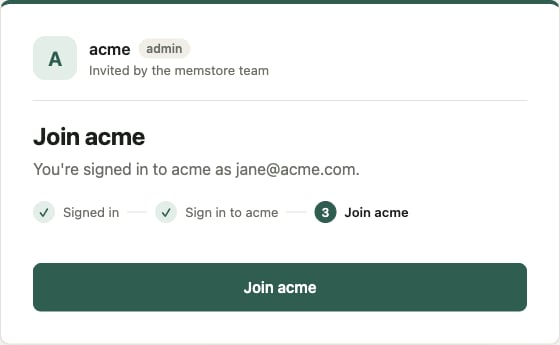
The email says who invited you and to which org. Open the link and follow the
page:
Sign in with the address the invite was sent to, or **Sign up** if you
have no account. If you sign up with a password, confirm your address
from the confirmation email first, then open the link again.
One more sign-in, this time for the org you're joining.
Press **Join *org***. The console opens on the org.
 ### Signed in with the wrong account?
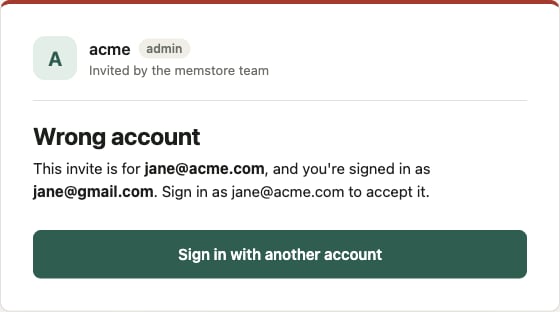
The invite is only for the address it was sent to. If you're signed in as
someone else, the page says so. Press **Sign in with another account** and use
the invited address.
### Signed in with the wrong account?
The invite is only for the address it was sent to. If you're signed in as
someone else, the page says so. Press **Sign in with another account** and use
the invited address.
 This documentation is built and hosted on [Mintlify](https://mintlify.com), a developer documentation platform.