> ## Documentation Index
> Fetch the complete documentation index at: https://docs.ampup.ai/llms.txt
> Use this file to discover all available pages before exploring further.
# Salesforce
> Connect Salesforce to sync CRM data with AmpUp
Connect your Salesforce instance to AmpUp to sync accounts, contacts, opportunities, and activity data. AmpUp will use this data to provide context-aware coaching and automatically log insights back to your CRM.
## Prerequisites
Before connecting Salesforce, ensure you have:
Salesforce admin permissions to install packages
AmpUp admin access for your organization
## Connect Salesforce
Install the AmpUp managed package into your Salesforce org using the link below:
```
https://login.salesforce.com/packaging/installPackage.apexp?p0=04tg50000004SddAAE
```
Follow the prompts in Salesforce to complete the installation.
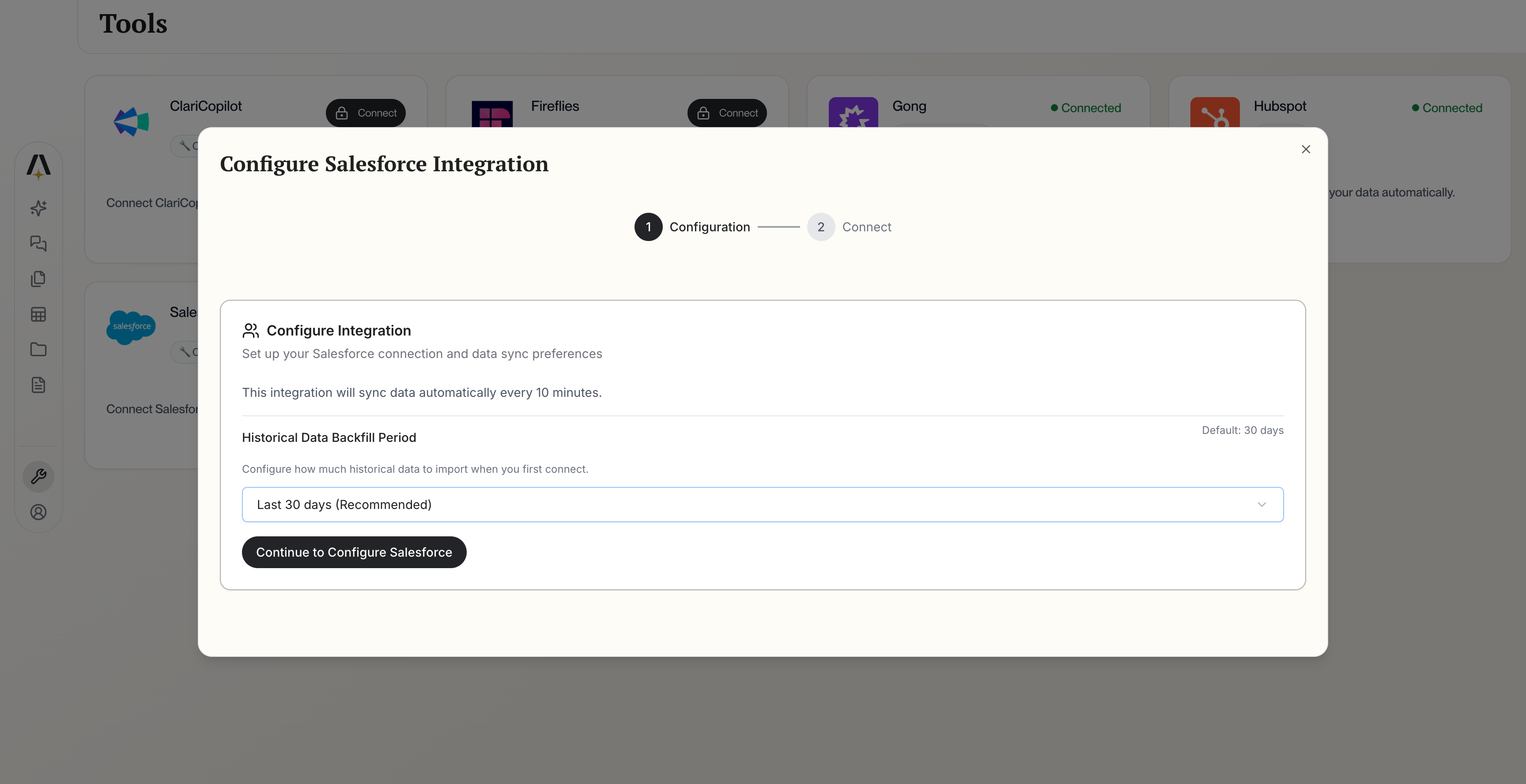
Go to the Salesforce tile on the [AmpUp Tools page](https://app.ampup.ai/maxima/tools) and click **Continue to Configure**.
 For each object listed, click **Save**. These are the objects AmpUp will pull from Salesforce.