> ## Documentation Index
> Fetch the complete documentation index at: https://docs.ampup.ai/llms.txt
> Use this file to discover all available pages before exploring further.
# Microsoft Teams
> Connect Microsoft Teams to sync your meetings with AmpUp
Connect your Outlook account to AmpUp to automatically pull in your Teams meetings, recordings, and transcripts. AmpUp uses this data to provide context-aware coaching based on your actual meetings.
## Prerequisites
Before connecting Microsoft Teams, ensure you have:
An Outlook account with Teams meetings enabled
AmpUp admin access for your organization
## Connect Microsoft Teams
Go to the Microsoft Teams tile on the [AmpUp Tools page](https://app.ampup.ai/maxima/tools) and click **Install Integration**.
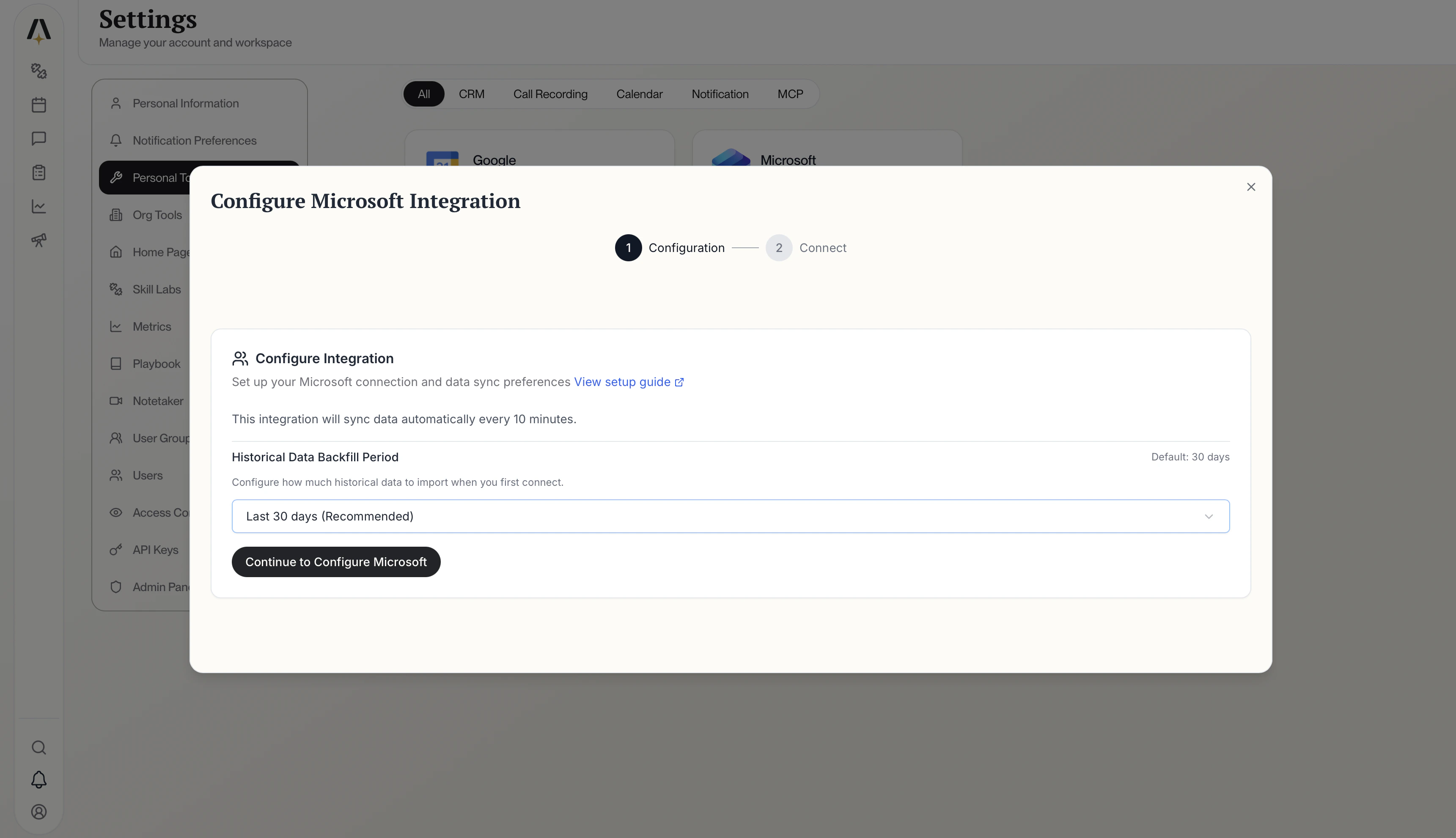 Click **Connect your Microsoft account**. You'll be redirected to Microsoft's sign-in page.
Sign in with your Outlook account and click **Allow** to grant AmpUp access to your meetings.
Click **Connect your Microsoft account**. You'll be redirected to Microsoft's sign-in page.
Sign in with your Outlook account and click **Allow** to grant AmpUp access to your meetings.
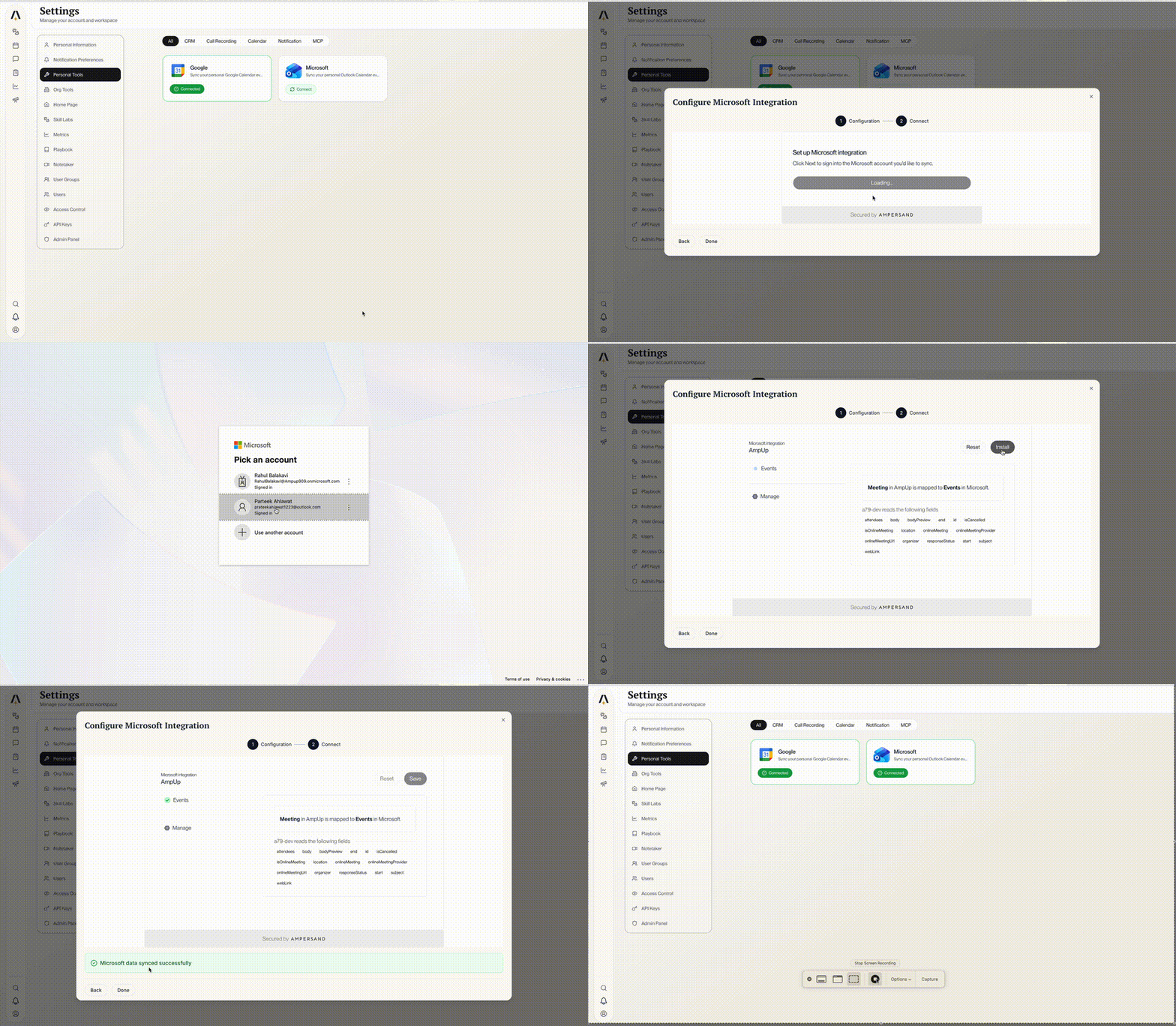 Once authorized, AmpUp will start fetching your meetings automatically.