> ## Documentation Index
> Fetch the complete documentation index at: https://docs.ampup.ai/llms.txt
> Use this file to discover all available pages before exploring further.
# HubSpot
> Connect HubSpot CRM to sync your sales data with AmpUp
Connect your HubSpot CRM to AmpUp to sync contacts, companies, deals, and engagement data. AmpUp uses this data to provide context-aware coaching and track the impact of improved sales behaviors on your pipeline.
## Prerequisites
Before connecting HubSpot, ensure you have:
HubSpot Super Admin or Admin access
Sales Hub Professional or Enterprise (for full features)
AmpUp admin access for your organization
HubSpot Client ID and Client Secret (see [Create a HubSpot App](#create-a-hubspot-app) below)
These credentials are required to establish a secure link between HubSpot and AmpUp. Once connected, your data will be encrypted in transit and at rest, and synced periodically to keep AmpUp up to date with your latest CRM data.
## Create a HubSpot App
Before connecting HubSpot to AmpUp, you'll need to create a HubSpot app to obtain your Client ID and Client Secret. There are two methods depending on when your HubSpot developer account was created.
For developer accounts created **after September 2025**, use this method.
Log into your HubSpot developer account and go to **Development** → **Legacy apps**.
 Click **Create** → select **Public**.
 Enter a name for your public app, then go to the **Auth** tab.
Add this redirect URL:
```
https://api.withampersand.com/callbacks/v1/oauth
```
Click **Create app**.
Go to the **Scopes** section, click **Add new scope**, and add the following scopes:
```
oauth
crm.objects.contacts.read
crm.objects.contacts.write
crm.objects.companies.read
crm.objects.companies.write
crm.objects.deals.read
crm.objects.deals.write
crm.objects.owners.read
crm.objects.meetings.read
crm.objects.notes.read
crm.objects.tasks.write
crm.schemas.contacts.read
crm.schemas.companies.read
crm.schemas.deals.read
sales-email-read
```
Copy the **Client ID** and **Client Secret** from the **Auth** tab.
This method uses the HubSpot CLI to create a new project-based app. This is the recommended approach for all new HubSpot apps.
New Project Apps are limited to 25 installs until listed on the HubSpot Marketplace.
Open your terminal and install the HubSpot CLI:
```bash theme={null}
npm install -g @hubspot/cli
```
Run the authentication command and select the option to open HubSpot in your browser to generate a personal access key:
```bash theme={null}
hs account auth
```
Enter a name for your public app, then go to the **Auth** tab.
Add this redirect URL:
```
https://api.withampersand.com/callbacks/v1/oauth
```
Click **Create app**.
Go to the **Scopes** section, click **Add new scope**, and add the following scopes:
```
oauth
crm.objects.contacts.read
crm.objects.contacts.write
crm.objects.companies.read
crm.objects.companies.write
crm.objects.deals.read
crm.objects.deals.write
crm.objects.owners.read
crm.objects.meetings.read
crm.objects.notes.read
crm.objects.tasks.write
crm.schemas.contacts.read
crm.schemas.companies.read
crm.schemas.deals.read
sales-email-read
```
Copy the **Client ID** and **Client Secret** from the **Auth** tab.
This method uses the HubSpot CLI to create a new project-based app. This is the recommended approach for all new HubSpot apps.
New Project Apps are limited to 25 installs until listed on the HubSpot Marketplace.
Open your terminal and install the HubSpot CLI:
```bash theme={null}
npm install -g @hubspot/cli
```
Run the authentication command and select the option to open HubSpot in your browser to generate a personal access key:
```bash theme={null}
hs account auth
```
 If you already have a personal access key, select **Enter existing personal access key** and skip to Step 5.
If you have multiple HubSpot accounts, make sure to select your **developer account**.
In the browser, create a new Personal Access Key and copy it.
If you already have a personal access key, select **Enter existing personal access key** and skip to Step 5.
If you have multiple HubSpot accounts, make sure to select your **developer account**.
In the browser, create a new Personal Access Key and copy it.
 Return to your terminal, paste the key, and press Enter.
 Run the following command to create a new HubSpot project:
```bash theme={null}
hs project create --name your-project-name --project-base app --distribution marketplace --auth oauth --features
```
Open the created project folder and edit `src/app/app-hsmeta.json`. Replace the `auth` section with the following:
```json theme={null}
{
"auth": {
"type": "oauth",
"redirectUrls": ["https://api.withampersand.com/callbacks/v1/oauth"],
"requiredScopes": [
"oauth",
"crm.objects.contacts.read",
"crm.objects.contacts.write",
"crm.objects.companies.read",
"crm.objects.companies.write",
"crm.objects.deals.read",
"crm.objects.deals.write",
"crm.objects.owners.read",
"crm.objects.meetings.read",
"crm.objects.notes.read",
"crm.objects.tasks.write",
"crm.schemas.contacts.read",
"crm.schemas.companies.read",
"crm.schemas.deals.read",
"sales-email-read"
],
"optionalScopes": [],
"conditionallyRequiredScopes": []
}
}
```
The scopes above include write access for contacts, companies, and deals to support write-back features like logging call summaries and action items.
Upload the project to HubSpot:
```bash theme={null}
hs project upload
```
Select **yes** when prompted to create the new project.
Run the following command to create a new HubSpot project:
```bash theme={null}
hs project create --name your-project-name --project-base app --distribution marketplace --auth oauth --features
```
Open the created project folder and edit `src/app/app-hsmeta.json`. Replace the `auth` section with the following:
```json theme={null}
{
"auth": {
"type": "oauth",
"redirectUrls": ["https://api.withampersand.com/callbacks/v1/oauth"],
"requiredScopes": [
"oauth",
"crm.objects.contacts.read",
"crm.objects.contacts.write",
"crm.objects.companies.read",
"crm.objects.companies.write",
"crm.objects.deals.read",
"crm.objects.deals.write",
"crm.objects.owners.read",
"crm.objects.meetings.read",
"crm.objects.notes.read",
"crm.objects.tasks.write",
"crm.schemas.contacts.read",
"crm.schemas.companies.read",
"crm.schemas.deals.read",
"sales-email-read"
],
"optionalScopes": [],
"conditionallyRequiredScopes": []
}
}
```
The scopes above include write access for contacts, companies, and deals to support write-back features like logging call summaries and action items.
Upload the project to HubSpot:
```bash theme={null}
hs project upload
```
Select **yes** when prompted to create the new project.
 Navigate to the **Development** tab in your HubSpot portal.
 Select your project.
 Click on the app in the **Project Components** section.
 Go to the **Distribution** tab, click **Begin Publishing**, and complete the Acceptable Use Policy step.
 Go to the **Auth** tab of your app. Copy the **Client ID** and **Client Secret** — you'll need these when connecting HubSpot in AmpUp.
 For developer accounts created **before September 2025**, use this method.
Log into your [HubSpot Developer Dashboard](https://developers.hubspot.com/) and click **Create an app**.
For developer accounts created **before September 2025**, use this method.
Log into your [HubSpot Developer Dashboard](https://developers.hubspot.com/) and click **Create an app**.
 Enter a name for your public app, then navigate to the **Auth** tab.
Add this redirect URL:
```
https://api.withampersand.com/callbacks/v1/oauth
```
Click **Create app**.
Enter a name for your public app, then navigate to the **Auth** tab.
Add this redirect URL:
```
https://api.withampersand.com/callbacks/v1/oauth
```
Click **Create app**.
 Go to the **Scopes** tab and add the following scopes:
```
oauth
crm.objects.contacts.read
crm.objects.contacts.write
crm.objects.companies.read
crm.objects.companies.write
crm.objects.deals.read
crm.objects.deals.write
crm.objects.owners.read
crm.objects.meetings.read
crm.objects.notes.read
crm.objects.tasks.write
crm.schemas.contacts.read
crm.schemas.companies.read
crm.schemas.deals.read
sales-email-read
```
Go to the **Scopes** tab and add the following scopes:
```
oauth
crm.objects.contacts.read
crm.objects.contacts.write
crm.objects.companies.read
crm.objects.companies.write
crm.objects.deals.read
crm.objects.deals.write
crm.objects.owners.read
crm.objects.meetings.read
crm.objects.notes.read
crm.objects.tasks.write
crm.schemas.contacts.read
crm.schemas.companies.read
crm.schemas.deals.read
sales-email-read
```
 Copy the **Client ID** and **Client Secret** from the **Auth** tab.
 ## What Data Syncs
### From HubSpot to AmpUp
| Object | Fields Synced |
| --------------- | ---------------------------------------------------- |
| **Companies** | Name, domain, industry, size, revenue, description |
| **Contacts** | Name, email, phone, title, company association |
| **Deals** | Name, stage, amount, close date, associated contacts |
| **Engagements** | Calls, emails, meetings, notes |
| **Owners** | Name, email, team assignment |
### From AmpUp to HubSpot
| Data Type | Description |
| -------------------- | -------------------------------------------- |
| **Meeting Notes** | AI-generated call summaries as engagements |
| **Activity Logging** | Coaching sessions logged to contact timeline |
| **Deal Updates** | Next steps and action items |
## Connect HubSpot
In AmpUp, go to **Settings** → **Integrations** → **HubSpot**.
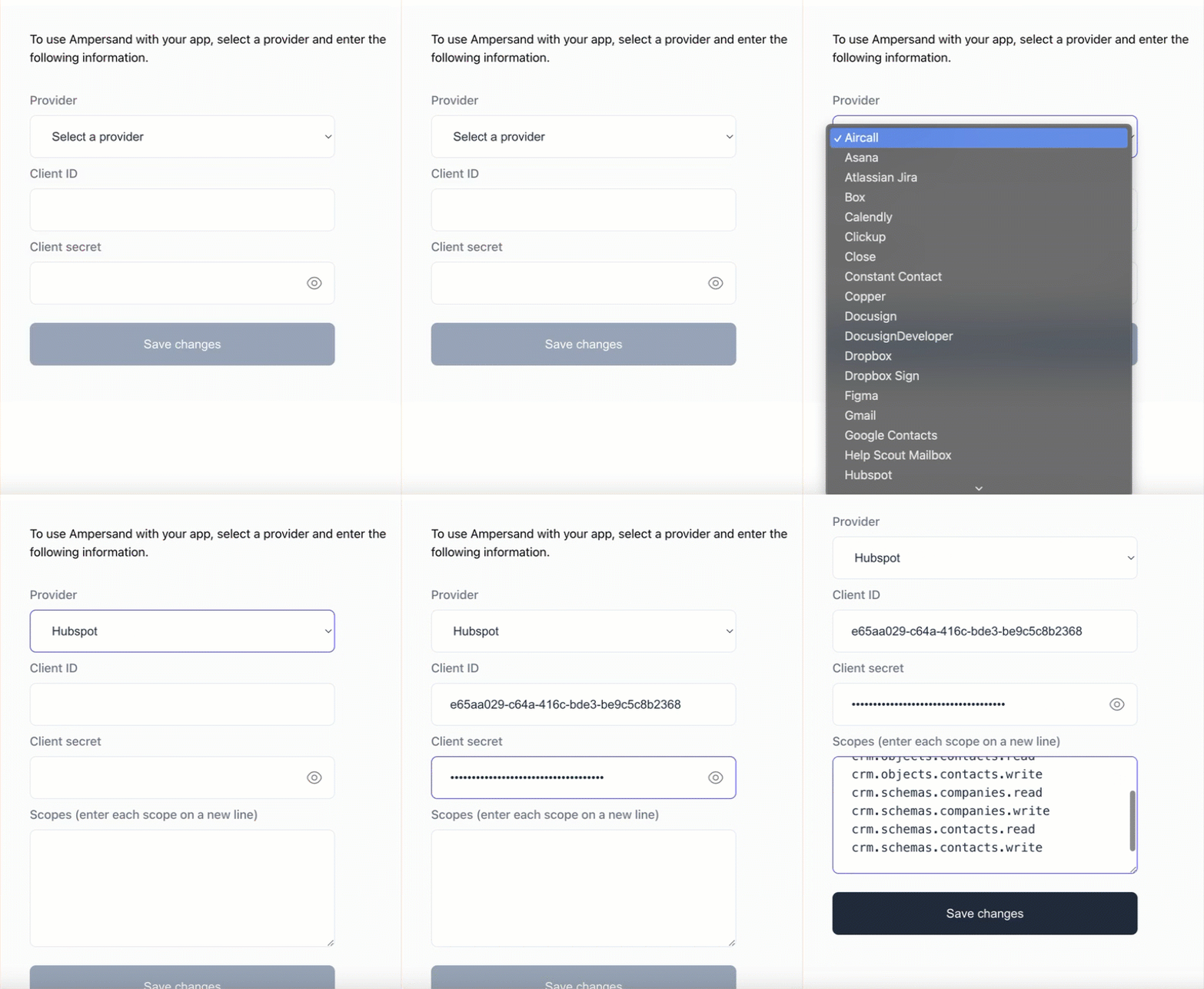
Click the **Connect HubSpot** button. AmpUp will prompt you to enter the **Client ID** and **Client Secret** from the HubSpot app you created above. AmpUp securely stores these credentials and uses them to establish the OAuth connection.
## What Data Syncs
### From HubSpot to AmpUp
| Object | Fields Synced |
| --------------- | ---------------------------------------------------- |
| **Companies** | Name, domain, industry, size, revenue, description |
| **Contacts** | Name, email, phone, title, company association |
| **Deals** | Name, stage, amount, close date, associated contacts |
| **Engagements** | Calls, emails, meetings, notes |
| **Owners** | Name, email, team assignment |
### From AmpUp to HubSpot
| Data Type | Description |
| -------------------- | -------------------------------------------- |
| **Meeting Notes** | AI-generated call summaries as engagements |
| **Activity Logging** | Coaching sessions logged to contact timeline |
| **Deal Updates** | Next steps and action items |
## Connect HubSpot
In AmpUp, go to **Settings** → **Integrations** → **HubSpot**.
Click the **Connect HubSpot** button. AmpUp will prompt you to enter the **Client ID** and **Client Secret** from the HubSpot app you created above. AmpUp securely stores these credentials and uses them to establish the OAuth connection.
 After entering your credentials, you'll be redirected to HubSpot. Sign in with your admin credentials.
If you have access to multiple HubSpot portals, select the one you want to connect.
Review the permissions and click **Connect app**.
AmpUp requests these scopes:
* `oauth` - OAuth authentication
* `crm.objects.contacts.read` - Read contacts
* `crm.objects.contacts.write` - Write contacts
* `crm.objects.companies.read` - Read companies
* `crm.objects.companies.write` - Write companies
* `crm.objects.deals.read` - Read deals
* `crm.objects.deals.write` - Write deals
* `crm.objects.owners.read` - Read owners
* `crm.objects.meetings.read` - Read meetings
* `crm.objects.notes.read` - Read notes
* `crm.objects.tasks.write` - Create tasks (action items, follow-ups)
* `crm.schemas.contacts.read` - Read contact schemas
* `crm.schemas.companies.read` - Read company schemas
* `crm.schemas.deals.read` - Read deal schemas
* `sales-email-read` - Read email engagements
Choose sync settings:
* Objects to sync
* Teams to include
* Write-back preferences
AmpUp imports your HubSpot data. This typically takes 1-3 hours.
## Configuration Options
After connecting, you'll see the field mapping interface where you can configure which data syncs between HubSpot and AmpUp.
After entering your credentials, you'll be redirected to HubSpot. Sign in with your admin credentials.
If you have access to multiple HubSpot portals, select the one you want to connect.
Review the permissions and click **Connect app**.
AmpUp requests these scopes:
* `oauth` - OAuth authentication
* `crm.objects.contacts.read` - Read contacts
* `crm.objects.contacts.write` - Write contacts
* `crm.objects.companies.read` - Read companies
* `crm.objects.companies.write` - Write companies
* `crm.objects.deals.read` - Read deals
* `crm.objects.deals.write` - Write deals
* `crm.objects.owners.read` - Read owners
* `crm.objects.meetings.read` - Read meetings
* `crm.objects.notes.read` - Read notes
* `crm.objects.tasks.write` - Create tasks (action items, follow-ups)
* `crm.schemas.contacts.read` - Read contact schemas
* `crm.schemas.companies.read` - Read company schemas
* `crm.schemas.deals.read` - Read deal schemas
* `sales-email-read` - Read email engagements
Choose sync settings:
* Objects to sync
* Teams to include
* Write-back preferences
AmpUp imports your HubSpot data. This typically takes 1-3 hours.
## Configuration Options
After connecting, you'll see the field mapping interface where you can configure which data syncs between HubSpot and AmpUp.
 ### Object Selection
Choose which HubSpot objects to sync:
| Object | Purpose | Recommended |
| ----------- | -------------------- | ----------- |
| Companies | Account context | ✅ Yes |
| Contacts | Meeting participants | ✅ Yes |
| Deals | Pipeline tracking | ✅ Yes |
| Engagements | Activity history | Optional |
### Pipeline Mapping
Map your HubSpot deal pipelines to AmpUp:
1. Go to **Settings** → **Integrations** → **HubSpot** → **Pipelines**
2. Select which pipelines to track
3. Map stages to AmpUp's sales phases
### Custom Properties
Sync custom HubSpot properties:
1. Go to **Settings** → **Integrations** → **HubSpot** → **Custom Fields**
2. Click **Add Property**
3. Select the HubSpot property and AmpUp destination
## Write-back Configuration
Control what AmpUp writes to HubSpot:
| Feature | Options | Default |
| ------------------- | ---------------------------------------- | -------- |
| **Call Summaries** | Create note, create engagement, disabled | Note |
| **Action Items** | Create task, add to note, disabled | Task |
| **Coaching Scores** | Custom property, disabled | Disabled |
Write-back requires additional HubSpot permissions. You'll be prompted to authorize if needed.
## Sync Status & Troubleshooting
### Check Sync Status
View status at **Settings** → **Integrations** → **HubSpot** → **Status**.
| Status | Meaning |
| --------------- | ------------------------ |
| ✅ **Connected** | Active and syncing |
| 🔄 **Syncing** | Sync in progress |
| ⚠️ **Limited** | Some objects not syncing |
| ❌ **Error** | Connection issue |
### Common Issues
* Verify your HubSpot user has access to the records
* Check if records are in an excluded pipeline or list
* Archived records are not synced by default
* HubSpot rate limits may slow large syncs
* Initial sync can take several hours for large portals
* Real-time sync applies after initial import completes
* Ensure you're connecting with a Super Admin account
* Some features require Sales Hub Professional or higher
* Check your HubSpot user permissions
* Verify write permissions were granted during setup
* Check that the connected user can create the object type
* Review HubSpot workflow conflicts
## Disconnect HubSpot
To remove the integration:
1. Go to **Settings** → **Integrations** → **HubSpot**
2. Click **Disconnect**
3. Confirm disconnection
You can also revoke access from HubSpot:
1. In HubSpot, go to **Settings** → **Integrations** → **Connected Apps**
2. Find AmpUp and click **Uninstall**
## FAQ
We recommend connecting only one CRM to avoid data conflicts. If you use multiple, choose your primary system of record.
AmpUp works with all HubSpot plans. Some features like engagement sync require Sales Hub Professional or Enterprise.
Custom object sync is available on Enterprise plans. Contact [support@ampup.ai](mailto:support@ampup.ai) to enable.
Currently, AmpUp syncs Sales Hub data only. Marketing Hub integration is on our roadmap.
### Object Selection
Choose which HubSpot objects to sync:
| Object | Purpose | Recommended |
| ----------- | -------------------- | ----------- |
| Companies | Account context | ✅ Yes |
| Contacts | Meeting participants | ✅ Yes |
| Deals | Pipeline tracking | ✅ Yes |
| Engagements | Activity history | Optional |
### Pipeline Mapping
Map your HubSpot deal pipelines to AmpUp:
1. Go to **Settings** → **Integrations** → **HubSpot** → **Pipelines**
2. Select which pipelines to track
3. Map stages to AmpUp's sales phases
### Custom Properties
Sync custom HubSpot properties:
1. Go to **Settings** → **Integrations** → **HubSpot** → **Custom Fields**
2. Click **Add Property**
3. Select the HubSpot property and AmpUp destination
## Write-back Configuration
Control what AmpUp writes to HubSpot:
| Feature | Options | Default |
| ------------------- | ---------------------------------------- | -------- |
| **Call Summaries** | Create note, create engagement, disabled | Note |
| **Action Items** | Create task, add to note, disabled | Task |
| **Coaching Scores** | Custom property, disabled | Disabled |
Write-back requires additional HubSpot permissions. You'll be prompted to authorize if needed.
## Sync Status & Troubleshooting
### Check Sync Status
View status at **Settings** → **Integrations** → **HubSpot** → **Status**.
| Status | Meaning |
| --------------- | ------------------------ |
| ✅ **Connected** | Active and syncing |
| 🔄 **Syncing** | Sync in progress |
| ⚠️ **Limited** | Some objects not syncing |
| ❌ **Error** | Connection issue |
### Common Issues
* Verify your HubSpot user has access to the records
* Check if records are in an excluded pipeline or list
* Archived records are not synced by default
* HubSpot rate limits may slow large syncs
* Initial sync can take several hours for large portals
* Real-time sync applies after initial import completes
* Ensure you're connecting with a Super Admin account
* Some features require Sales Hub Professional or higher
* Check your HubSpot user permissions
* Verify write permissions were granted during setup
* Check that the connected user can create the object type
* Review HubSpot workflow conflicts
## Disconnect HubSpot
To remove the integration:
1. Go to **Settings** → **Integrations** → **HubSpot**
2. Click **Disconnect**
3. Confirm disconnection
You can also revoke access from HubSpot:
1. In HubSpot, go to **Settings** → **Integrations** → **Connected Apps**
2. Find AmpUp and click **Uninstall**
## FAQ
We recommend connecting only one CRM to avoid data conflicts. If you use multiple, choose your primary system of record.
AmpUp works with all HubSpot plans. Some features like engagement sync require Sales Hub Professional or Enterprise.
Custom object sync is available on Enterprise plans. Contact [support@ampup.ai](mailto:support@ampup.ai) to enable.
Currently, AmpUp syncs Sales Hub data only. Marketing Hub integration is on our roadmap.