> ## Documentation Index
> Fetch the complete documentation index at: https://docs.ampup.ai/llms.txt
> Use this file to discover all available pages before exploring further.

# Google

> Connect Google to sync your meetings with AmpUp

Connect your Google account to AmpUp to automatically pull in your Google Calendar meetings. AmpUp uses this data to provide context-aware coaching based on your actual meetings.

## Prerequisites

Before connecting Google, ensure you have:

<Check>A Google account with access to your meetings</Check>
<Check>AmpUp admin access for your organization</Check>

## Connect Google

<Steps>
  <Step title="Install the Google Integration">
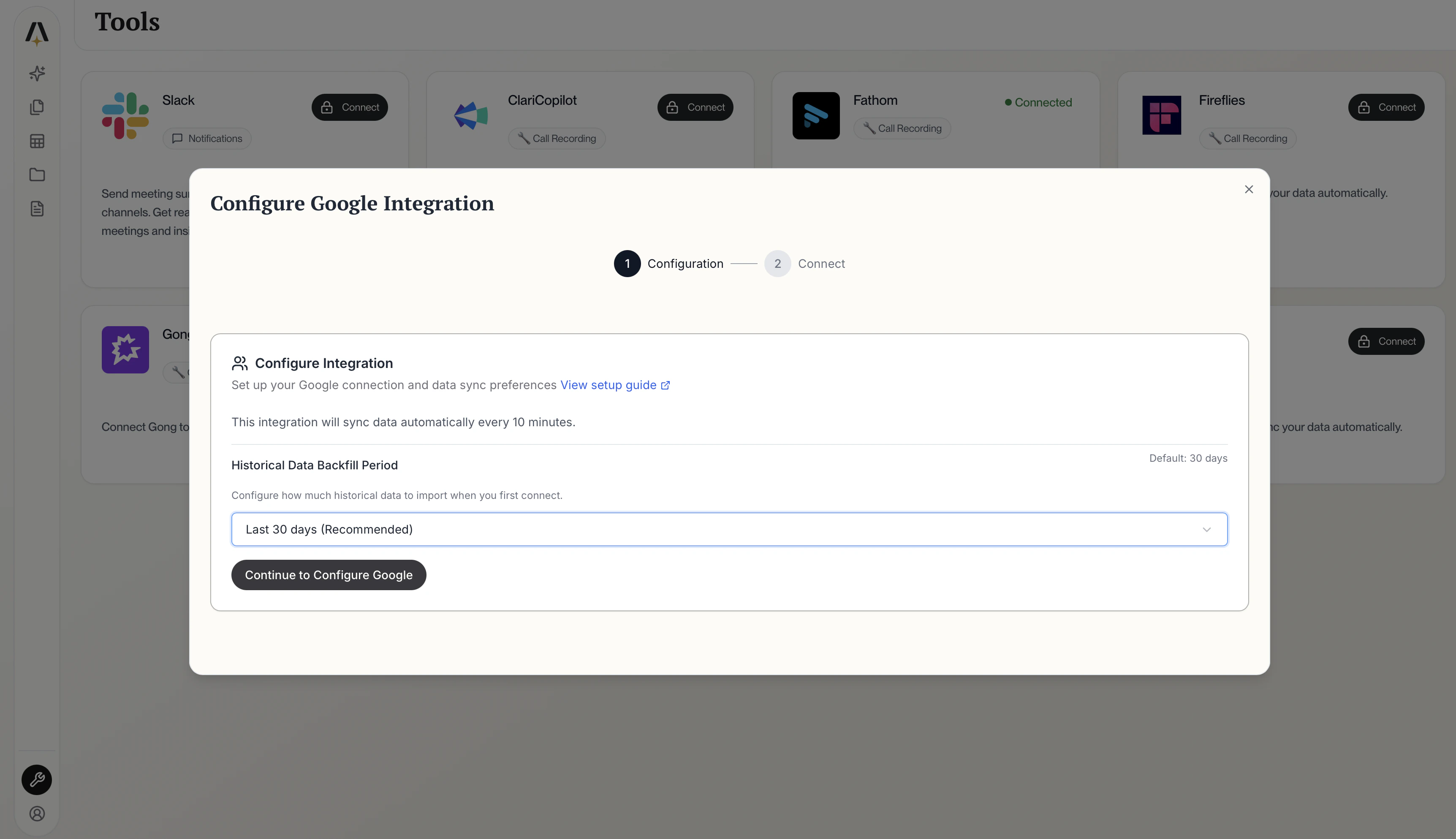
    Go to the Google tile on the [AmpUp Tools page](https://app.ampup.ai/maxima/tools) and click **Install Integration**.

    <Frame caption="Install Google Integration">
      <img src="https://mintcdn.com/ampup/Aj009E5ZraAcD_H_/images/integrations/google/google-install.png?fit=max&auto=format&n=Aj009E5ZraAcD_H_&q=85&s=3a260134936eb9e0dc8edadf574b5075" alt="Install Google Integration" width="3448" height="1986" data-path="images/integrations/google/google-install.png" />
    </Frame>
  </Step>

  <Step title="Authorize with Google">
    Click **Connect your Google account**. You'll be redirected to Google's sign-in page.

    Sign in with your Google account and click **Allow** to grant AmpUp access to your meetings.

    <Frame>
      <video autoPlay loop muted playsInline style={{width:"100%"}} onLoadedData={(e) => e.target.playbackRate = 1.5}>
        <source src="https://mintcdn.com/ampup/Aj009E5ZraAcD_H_/images/integrations/google/google-auth.mp4?fit=max&auto=format&n=Aj009E5ZraAcD_H_&q=85&s=d52a271f9a66c4167ca1aa6a297b3df4" type="video/mp4" data-path="images/integrations/google/google-auth.mp4" />
      </video>
    </Frame>

    Once authorized, AmpUp will start fetching your meetings automatically.
  </Step>
</Steps>
