> ## Documentation Index
> Fetch the complete documentation index at: https://docs.ampup.ai/llms.txt
> Use this file to discover all available pages before exploring further.
# Gong
> Connect Gong to analyze your sales calls with AmpUp
Connect Gong to AmpUp to import your call recordings and transcripts. AmpUp's AI agents will analyze your sales conversations to provide personalized coaching, identify winning behaviors, and help every rep perform like your best.
## Prerequisites
Before connecting Gong, ensure you have:
Gong admin access or Technical Admin role
API access enabled in your Gong instance
AmpUp admin access for your organization
Gong Client ID and Client Secret (see [Create a Gong App](#create-a-gong-app) below)
These credentials are required to establish a secure link between Gong and AmpUp. Once connected, your data will be encrypted in transit and at rest, and synced periodically to keep AmpUp up to date with your latest calls and transcripts.
## Create a Gong App
Before connecting Gong to AmpUp, you'll need to create a Gong app to obtain your Client ID and Client Secret.
You must first complete the [Gong partnership process](https://www.gong.io/partners/) and obtain a Gong Sandbox environment before you can create an app.
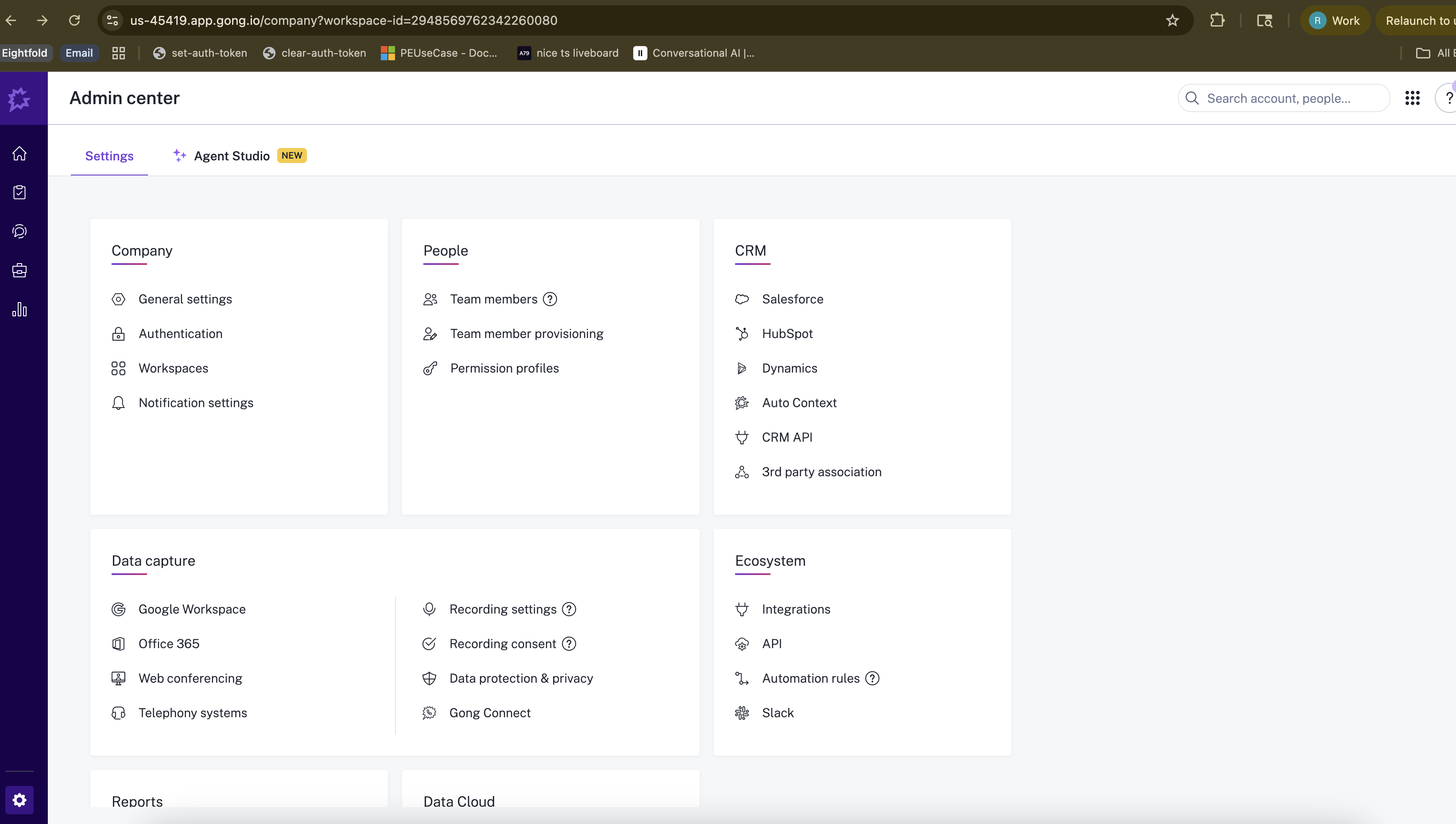
Log into your Gong account and go to the **Admin center**. Under the **Ecosystem** section, click **API**.
 On the **Create Your Gong Integration** page, fill in the following fields:
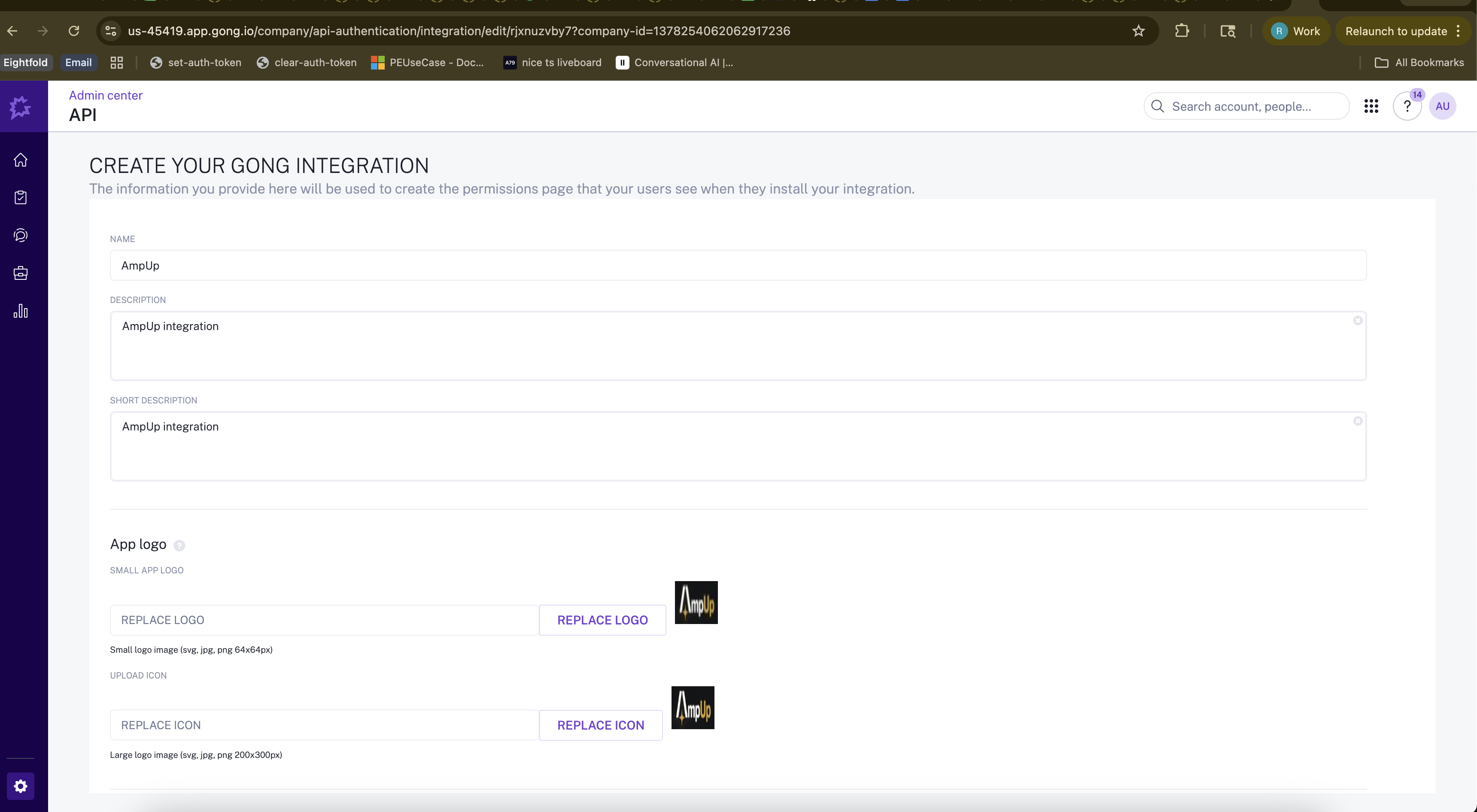 | Field | Value |
| --------------------- | --------------------------------------------------------------- |
| **Name** | `AmpUp` (or your preferred app name) |
| **Description** | `AmpUp integration` |
| **Short Description** | `AmpUp integration` |
| **Small App Logo** | Upload the AmpUp logo below (svg, jpg, or png — 64x64px) |
| **Upload Icon** | Upload the same AmpUp logo below (svg, jpg, or png — 200x300px) |
Use this logo for both fields:
| Field | Value |
| --------------------- | --------------------------------------------------------------- |
| **Name** | `AmpUp` (or your preferred app name) |
| **Description** | `AmpUp integration` |
| **Short Description** | `AmpUp integration` |
| **Small App Logo** | Upload the AmpUp logo below (svg, jpg, or png — 64x64px) |
| **Upload Icon** | Upload the same AmpUp logo below (svg, jpg, or png — 200x300px) |
Use this logo for both fields:
 Scroll down and fill in the remaining fields:
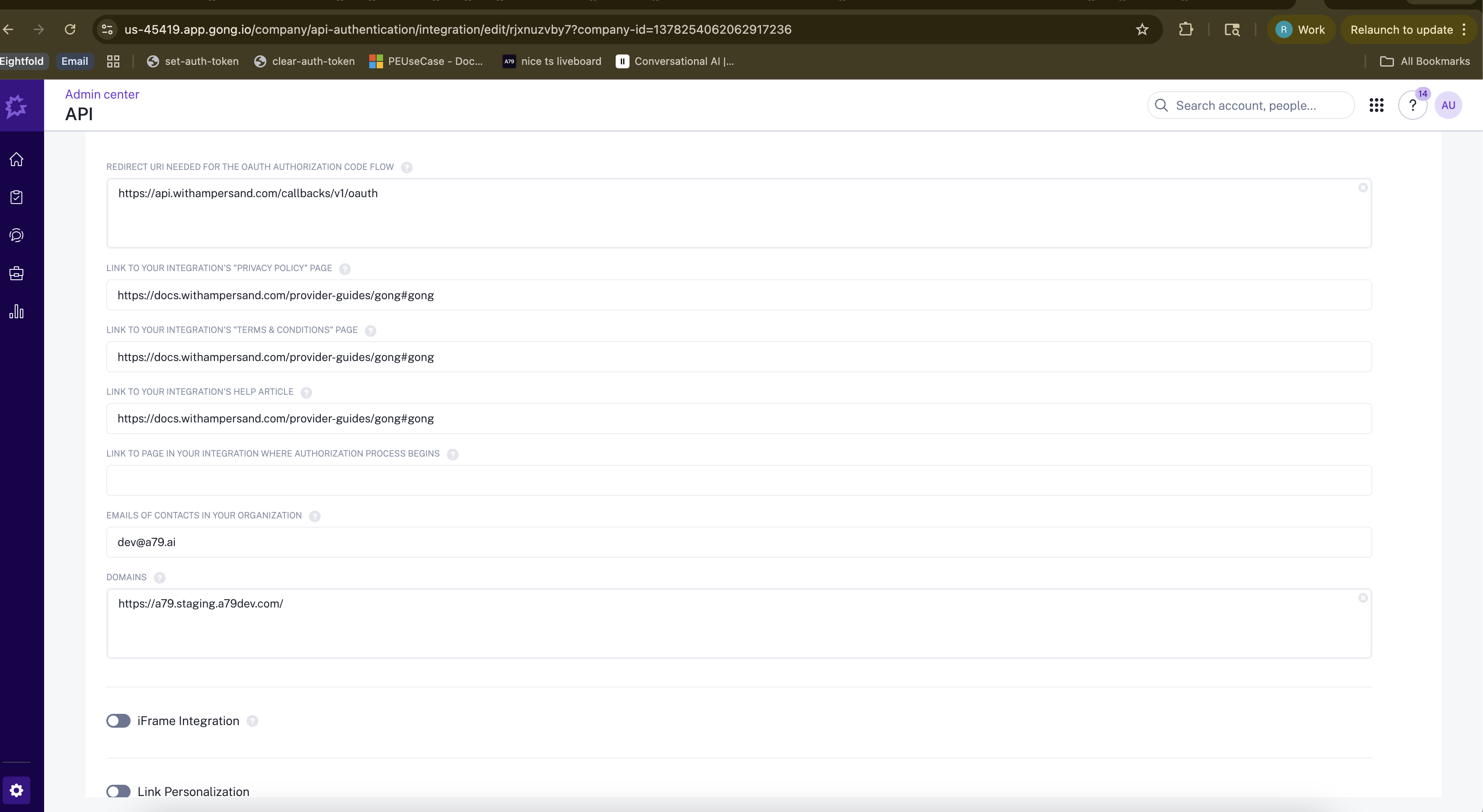 | Field | Value |
| ----------------------------------------------------------------------- | ---------------------------------------------------------------- |
| **Redirect URI needed for the OAuth Authorization Code Flow** | `https://api.withampersand.com/callbacks/v1/oauth` |
| **Link to your integration's "Privacy Policy" page** | Your company's privacy policy URL |
| **Link to your integration's "Terms & Conditions" page** | Your company's terms and conditions URL |
| **Link to your integration's Help Article** | Your company's help/documentation URL |
| **Link to page in your integration where authorization process begins** | The URL where users initiate the Gong connection in your app |
| **Emails of contacts in your organization** | Your team's contact email (e.g., `dev@yourcompany.com`) |
| **Domains** | Your application's domain (e.g., `https://app.yourcompany.com/`) |
Leave **iFrame Integration** and **Link Personalization** toggles off unless you have specific needs for them.
Add the following scopes to your app:
```
api:calls:read:basic
api:calls:read:extensive
api:calls:read:transcript
api:calls:read:media-url
```
Once the app is created, copy the **Client ID** and **Client Secret** from the app settings page. You'll need these when connecting Gong in AmpUp.
## What Data Syncs
### From Gong to AmpUp
| Data Type | Description |
| ------------------- | ------------------------------------------------- |
| **Call Recordings** | Audio/video recordings of your sales calls |
| **Transcripts** | Full conversation transcripts with speaker labels |
| **Call Metadata** | Duration, participants, date, title |
| **Participants** | Names, emails, roles (internal vs external) |
| **Trackers** | Gong tracker mentions and alerts |
| **CRM Links** | Associated accounts and opportunities |
AmpUp processes calls recorded in the last 90 days during initial sync. New calls sync automatically within minutes of being processed by Gong.
## Connect Gong
In AmpUp, go to **Settings** → **Integrations** → **Gong**.
Click the **Connect Gong** button. AmpUp will prompt you to enter the **Client ID** and **Client Secret** from the Gong app you created above. AmpUp securely stores these credentials and uses them to establish the OAuth connection.
| Field | Value |
| ----------------------------------------------------------------------- | ---------------------------------------------------------------- |
| **Redirect URI needed for the OAuth Authorization Code Flow** | `https://api.withampersand.com/callbacks/v1/oauth` |
| **Link to your integration's "Privacy Policy" page** | Your company's privacy policy URL |
| **Link to your integration's "Terms & Conditions" page** | Your company's terms and conditions URL |
| **Link to your integration's Help Article** | Your company's help/documentation URL |
| **Link to page in your integration where authorization process begins** | The URL where users initiate the Gong connection in your app |
| **Emails of contacts in your organization** | Your team's contact email (e.g., `dev@yourcompany.com`) |
| **Domains** | Your application's domain (e.g., `https://app.yourcompany.com/`) |
Leave **iFrame Integration** and **Link Personalization** toggles off unless you have specific needs for them.
Add the following scopes to your app:
```
api:calls:read:basic
api:calls:read:extensive
api:calls:read:transcript
api:calls:read:media-url
```
Once the app is created, copy the **Client ID** and **Client Secret** from the app settings page. You'll need these when connecting Gong in AmpUp.
## What Data Syncs
### From Gong to AmpUp
| Data Type | Description |
| ------------------- | ------------------------------------------------- |
| **Call Recordings** | Audio/video recordings of your sales calls |
| **Transcripts** | Full conversation transcripts with speaker labels |
| **Call Metadata** | Duration, participants, date, title |
| **Participants** | Names, emails, roles (internal vs external) |
| **Trackers** | Gong tracker mentions and alerts |
| **CRM Links** | Associated accounts and opportunities |
AmpUp processes calls recorded in the last 90 days during initial sync. New calls sync automatically within minutes of being processed by Gong.
## Connect Gong
In AmpUp, go to **Settings** → **Integrations** → **Gong**.
Click the **Connect Gong** button. AmpUp will prompt you to enter the **Client ID** and **Client Secret** from the Gong app you created above. AmpUp securely stores these credentials and uses them to establish the OAuth connection.
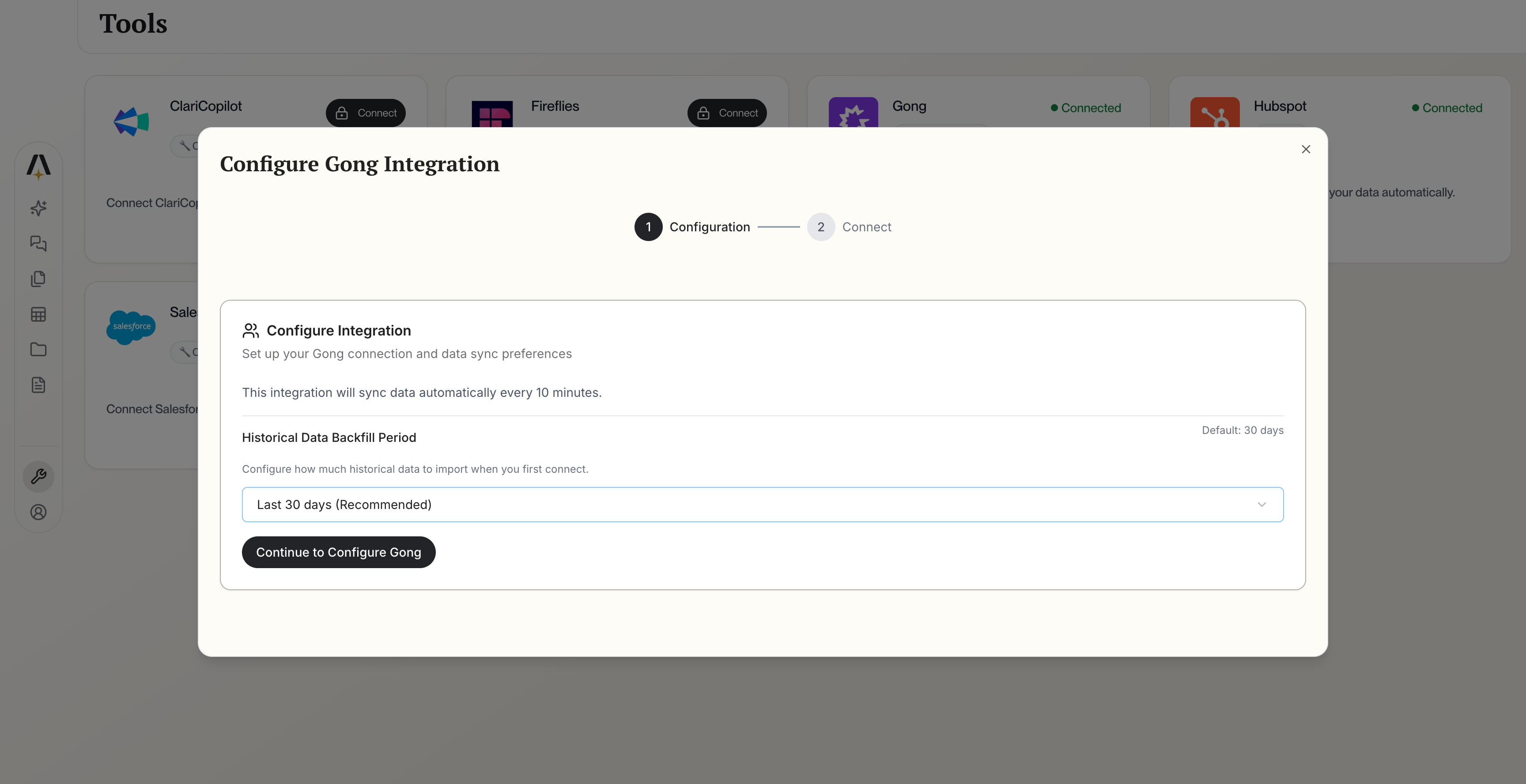 After entering your credentials, you'll be redirected to Gong. Sign in with your admin credentials and authorize AmpUp.
Review the permissions and click **Authorize** to grant access.
AmpUp requests the following permissions:
* Read calls and recordings
* Read transcripts
* Read users and teams
* Read CRM associations
Choose which teams' calls to import. By default, all teams are included.
AmpUp will begin importing your Gong calls. This typically takes 2-6 hours depending on call volume.
## Configuration Options
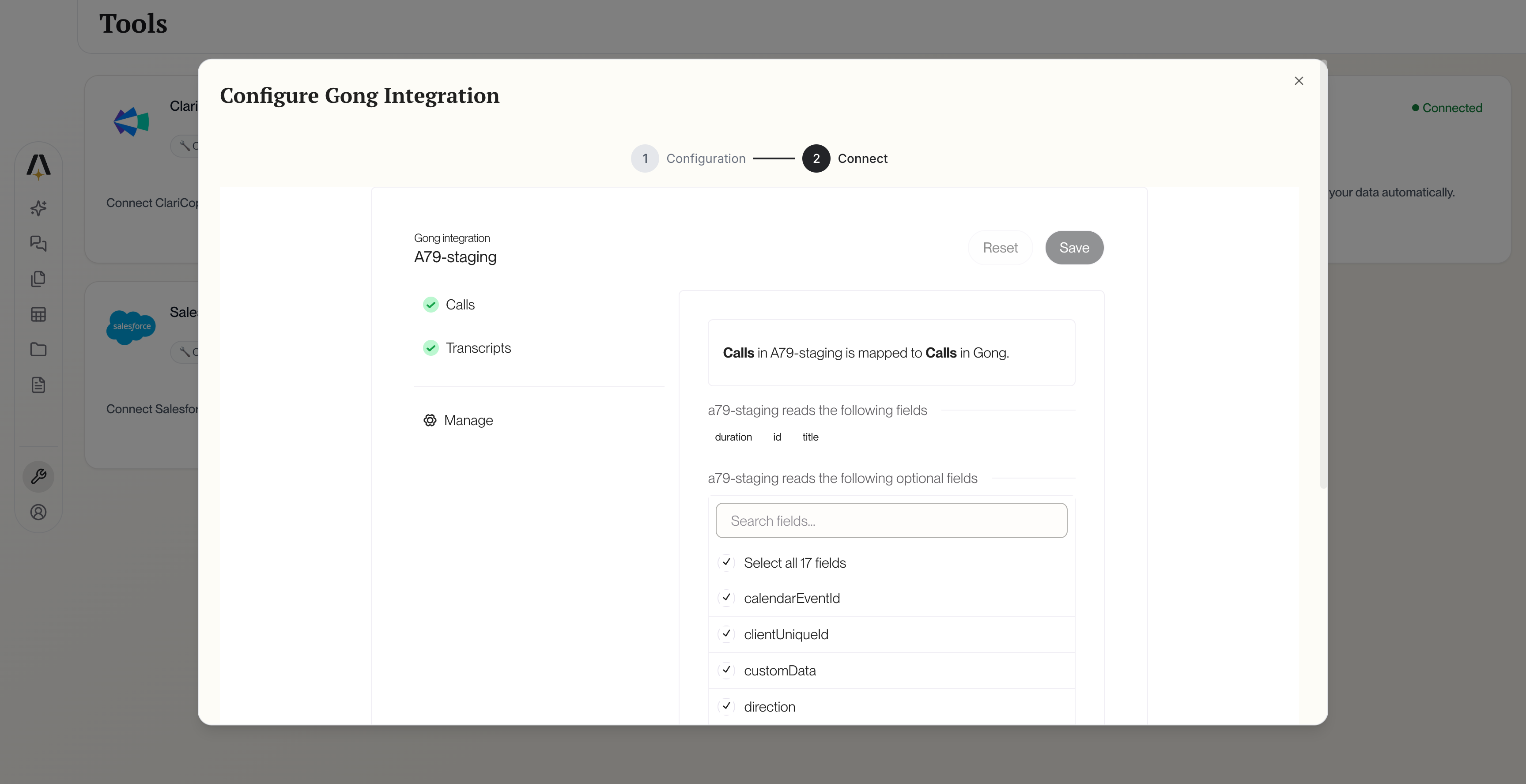
After connecting, you'll see the field mapping interface where you can configure which call data syncs from Gong.
After entering your credentials, you'll be redirected to Gong. Sign in with your admin credentials and authorize AmpUp.
Review the permissions and click **Authorize** to grant access.
AmpUp requests the following permissions:
* Read calls and recordings
* Read transcripts
* Read users and teams
* Read CRM associations
Choose which teams' calls to import. By default, all teams are included.
AmpUp will begin importing your Gong calls. This typically takes 2-6 hours depending on call volume.
## Configuration Options
After connecting, you'll see the field mapping interface where you can configure which call data syncs from Gong.
 ### Team Filtering
Control which teams' calls are imported:
1. Go to **Settings** → **Integrations** → **Gong** → **Teams**
2. Toggle teams on/off to include or exclude their calls
3. Changes apply to new calls going forward
### Call Type Filtering
Filter which call types to import:
| Call Type | Default |
| ------------------ | ---------- |
| Scheduled Meetings | ✅ Included |
| Instant Calls | ✅ Included |
| Internal Calls | ❌ Excluded |
| Demo Calls | ✅ Included |
### Historical Import Range
Choose how far back to import:
* **30 days** - Fastest import, recent calls only
* **90 days** - Recommended balance of history and speed
* **1 year** - Comprehensive history, longer import time
## How AmpUp Uses Gong Data
Once connected, AmpUp's AI agents analyze your Gong calls to provide:
Ben analyzes each call and provides specific, actionable feedback on what went well and what to improve.
Identify winning behaviors across your top performers and scale them to the whole team.
Alex uses past calls with an account to prepare reps for upcoming meetings.
Maya creates roleplay scenarios based on real objections from your calls.
## Sync Status & Troubleshooting
### Check Sync Status
View your sync status at **Settings** → **Integrations** → **Gong** → **Sync Status**.
| Status | Meaning |
| ---------------- | ----------------------------- |
| ✅ **Connected** | Integration is active |
| 🔄 **Importing** | Historical import in progress |
| ✅ **Live Sync** | Real-time sync active |
| ⚠️ **Delayed** | Sync backlog, processing |
| ❌ **Error** | Connection issue |
### Common Issues
* Ensure the call has finished processing in Gong (can take up to 2 hours)
* Verify the team/user is included in your sync settings
* Check that the call type is not filtered out
* Transcripts are only available for calls with clear audio
* Non-English calls may have limited transcript support
* Very short calls (under 1 minute) may not be transcribed
Your Gong admin may need to approve the integration. Check with your Gong administrator if you see permission errors.
Large call libraries take time to import. The integration will process calls in chronological order, newest first.
## Disconnect Gong
To disconnect the integration:
1. Go to **Settings** → **Integrations** → **Gong**
2. Click **Disconnect**
3. Confirm the disconnection
Disconnecting stops new calls from syncing. Previously imported call data remains in AmpUp unless you request deletion.
## FAQ
No. AmpUp complements Gong by adding a personalized coaching layer. Continue using Gong for call recording and basic insights. AmpUp adds AI-powered 1:1 coaching.
Enterprise plans support multiple Gong instances. Contact [support@ampup.ai](mailto:support@ampup.ai) for setup.
New calls typically appear in AmpUp within 15-30 minutes of being processed by Gong.
Yes. All data is encrypted in transit and at rest. AmpUp is SOC 2 Type 2 certified. We never share your data with third parties.
### Team Filtering
Control which teams' calls are imported:
1. Go to **Settings** → **Integrations** → **Gong** → **Teams**
2. Toggle teams on/off to include or exclude their calls
3. Changes apply to new calls going forward
### Call Type Filtering
Filter which call types to import:
| Call Type | Default |
| ------------------ | ---------- |
| Scheduled Meetings | ✅ Included |
| Instant Calls | ✅ Included |
| Internal Calls | ❌ Excluded |
| Demo Calls | ✅ Included |
### Historical Import Range
Choose how far back to import:
* **30 days** - Fastest import, recent calls only
* **90 days** - Recommended balance of history and speed
* **1 year** - Comprehensive history, longer import time
## How AmpUp Uses Gong Data
Once connected, AmpUp's AI agents analyze your Gong calls to provide:
Ben analyzes each call and provides specific, actionable feedback on what went well and what to improve.
Identify winning behaviors across your top performers and scale them to the whole team.
Alex uses past calls with an account to prepare reps for upcoming meetings.
Maya creates roleplay scenarios based on real objections from your calls.
## Sync Status & Troubleshooting
### Check Sync Status
View your sync status at **Settings** → **Integrations** → **Gong** → **Sync Status**.
| Status | Meaning |
| ---------------- | ----------------------------- |
| ✅ **Connected** | Integration is active |
| 🔄 **Importing** | Historical import in progress |
| ✅ **Live Sync** | Real-time sync active |
| ⚠️ **Delayed** | Sync backlog, processing |
| ❌ **Error** | Connection issue |
### Common Issues
* Ensure the call has finished processing in Gong (can take up to 2 hours)
* Verify the team/user is included in your sync settings
* Check that the call type is not filtered out
* Transcripts are only available for calls with clear audio
* Non-English calls may have limited transcript support
* Very short calls (under 1 minute) may not be transcribed
Your Gong admin may need to approve the integration. Check with your Gong administrator if you see permission errors.
Large call libraries take time to import. The integration will process calls in chronological order, newest first.
## Disconnect Gong
To disconnect the integration:
1. Go to **Settings** → **Integrations** → **Gong**
2. Click **Disconnect**
3. Confirm the disconnection
Disconnecting stops new calls from syncing. Previously imported call data remains in AmpUp unless you request deletion.
## FAQ
No. AmpUp complements Gong by adding a personalized coaching layer. Continue using Gong for call recording and basic insights. AmpUp adds AI-powered 1:1 coaching.
Enterprise plans support multiple Gong instances. Contact [support@ampup.ai](mailto:support@ampup.ai) for setup.
New calls typically appear in AmpUp within 15-30 minutes of being processed by Gong.
Yes. All data is encrypted in transit and at rest. AmpUp is SOC 2 Type 2 certified. We never share your data with third parties.