> ## Documentation Index
> Fetch the complete documentation index at: https://docs.ampup.ai/llms.txt
> Use this file to discover all available pages before exploring further.
# Fathom
> Connect Fathom to analyze your meeting recordings with AmpUp
Connect Fathom to AmpUp to import your meeting recordings, transcripts, and AI-generated summaries. AmpUp's AI agents will analyze your sales conversations to provide personalized coaching and help every rep perform at their best.
## Prerequisites
Before connecting Fathom, ensure you have:
Fathom account with API access
Admin permissions to generate API keys in Fathom
AmpUp admin access for your organization
## What Data Syncs
### From Fathom to AmpUp
| Data Type | Description |
| ---------------------- | ------------------------------------------------------------------ |
| **Meeting Recordings** | Video/audio recordings from Zoom, Google Meet, and Microsoft Teams |
| **Transcripts** | Full conversation transcripts with speaker identification |
| **AI Summaries** | Fathom's AI-generated meeting summaries and key points |
| **Meeting Metadata** | Duration, date, title, platform (Zoom/Meet/Teams) |
| **Participants** | Attendee names and emails |
| **Action Items** | Tasks and next steps captured by Fathom |
| **Team Data** | Team structure and member information |
AmpUp imports meetings from the last 90 days during initial sync. New meetings sync automatically after Fathom processes them.
## Connect Fathom
Unlike OAuth-based integrations, Fathom uses API key authentication for a simpler setup process.
Log into your Fathom account and navigate to **Settings** → **Integrations** → **API Access**.
Click **Generate New API Key** and copy the key.
Save your API key securely - it won't be shown again. You'll need this to connect to AmpUp.
In AmpUp, go to **Settings** → **Integrations** → **Fathom**.
Click **Connect Fathom**. AmpUp will prompt you to enter the **API Key** you generated from Fathom. AmpUp securely stores this credential and uses it to access your Fathom data.
Configure your integration preferences:
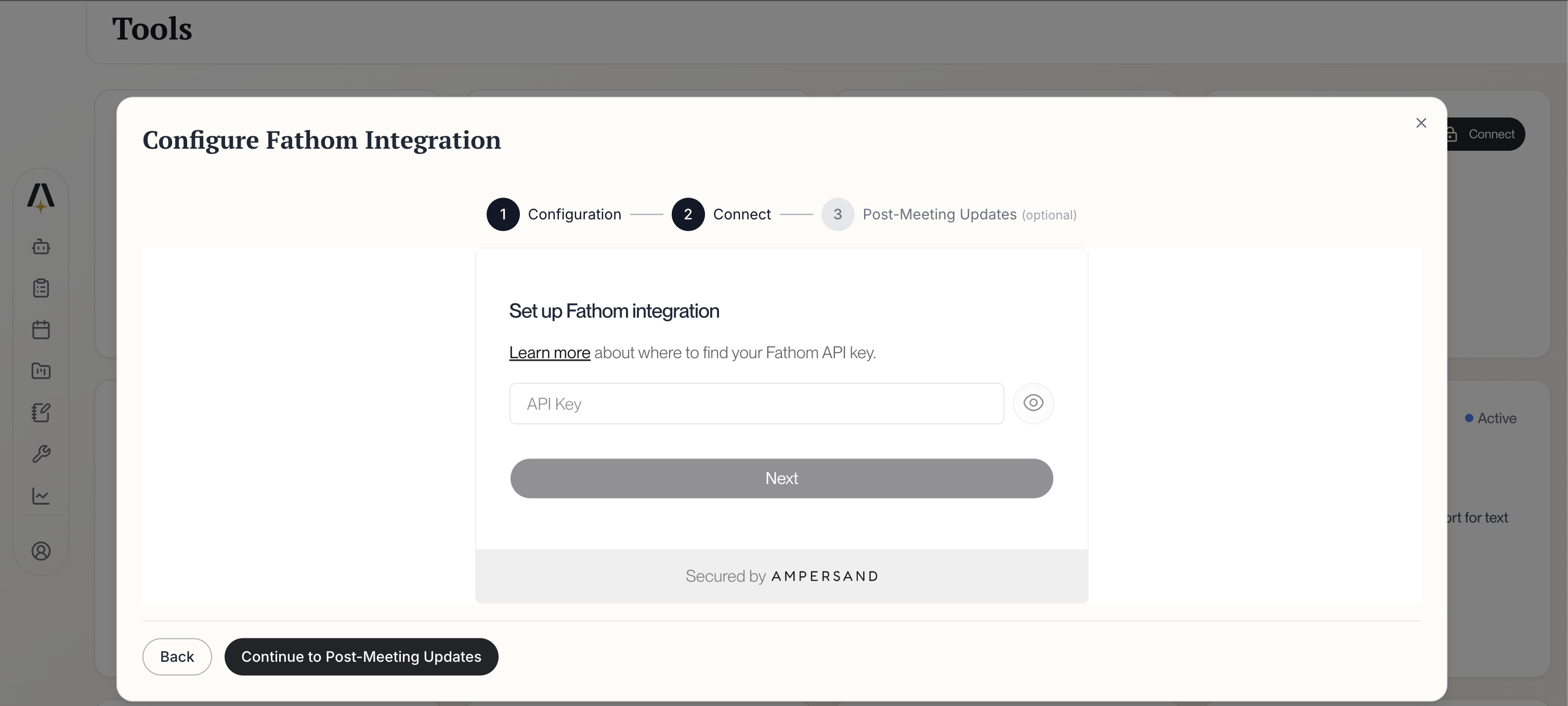 * **Historical Data Backfill Period**: Choose how far back to import (default: 30 days recommended)
* Data syncs automatically every 10 minutes after initial setup
Click **Continue to Configure Fathom** to proceed.
Review which Fathom data fields will sync to AmpUp:
* **Historical Data Backfill Period**: Choose how far back to import (default: 30 days recommended)
* Data syncs automatically every 10 minutes after initial setup
Click **Continue to Configure Fathom** to proceed.
Review which Fathom data fields will sync to AmpUp:
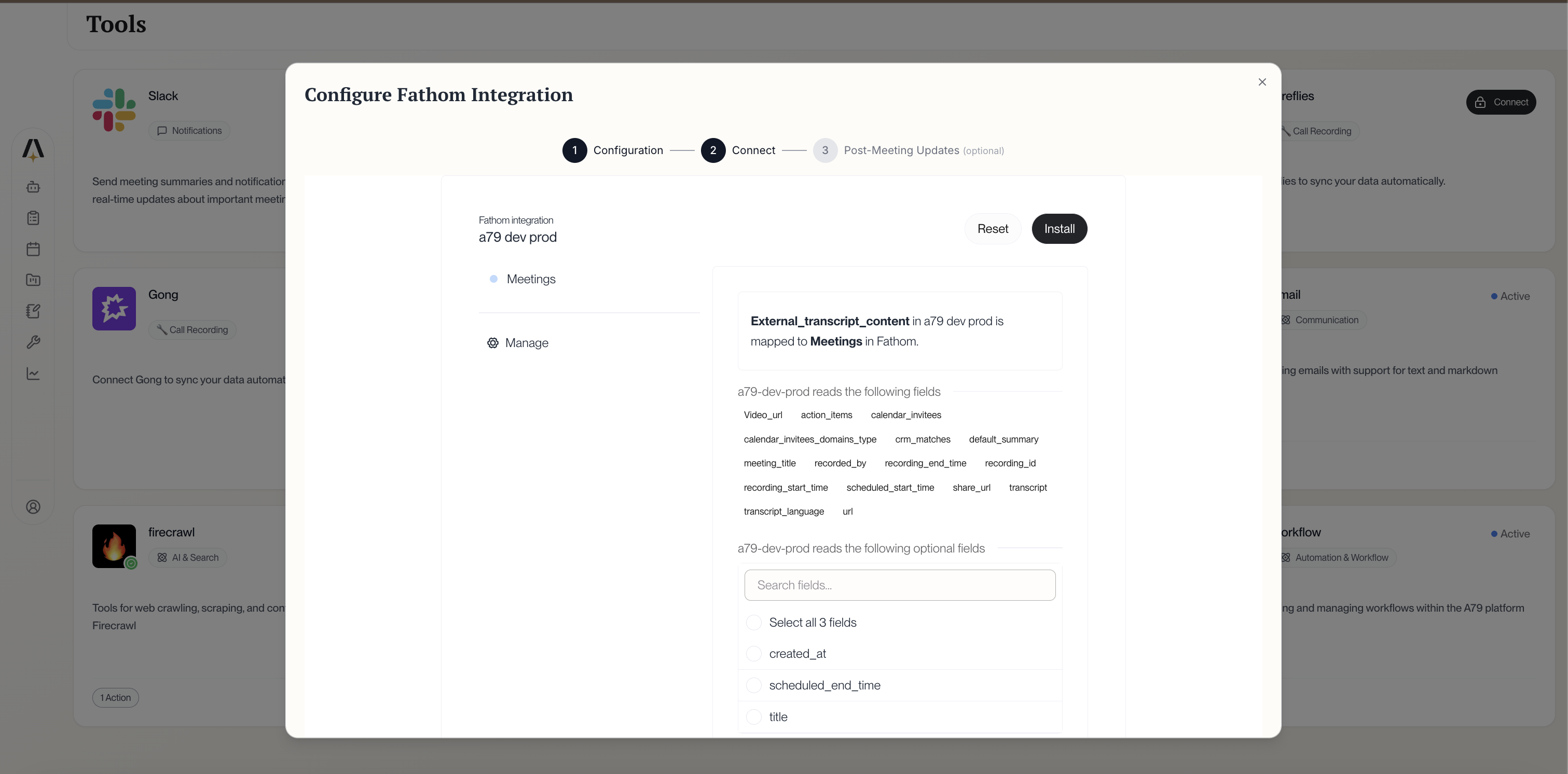 The integration syncs:
* **Required fields**: Meetings, transcripts, summaries, action items, recording URLs, CRM matches
* **Optional fields**: Created date, scheduled times, title
Click **Install** to complete the connection.
AmpUp will begin importing your Fathom meetings. This typically takes 1-3 hours depending on meeting volume.
## Configuration Options
### Team Filtering
Control which teams' meetings are imported:
1. Go to **Settings** → **Integrations** → **Fathom** → **Teams**
2. Toggle teams on/off to include or exclude their meetings
3. Changes apply to new meetings going forward
### Meeting Filters
Filter which meetings to import:
| Filter | Default |
| ------------------------- | ----------------------- |
| **Minimum Duration** | 5 minutes |
| **External Participants** | Required |
| **Platform** | All (Zoom, Meet, Teams) |
| **Recording Type** | All recorded meetings |
### Historical Import Range
Choose how far back to import:
* **30 days** - Quick setup, recent meetings only
* **90 days** - Recommended for most teams
* **6 months** - Extended history for analysis
* **1 year** - Comprehensive historical data
## How AmpUp Uses Fathom Data
Once connected, AmpUp's AI agents analyze your Fathom meetings to provide:
AmpUp builds on Fathom's summaries with deeper analysis and personalized coaching feedback for each rep.
Identify what makes your top performers successful and replicate those behaviors across the team.
Alex uses past meeting transcripts to prepare reps with account context and suggested talking points.
Maya creates practice scenarios based on real objections and questions from your Fathom recordings.
## Sync Status & Troubleshooting
### Check Sync Status
View your sync status at **Settings** → **Integrations** → **Fathom** → **Sync Status**.
| Status | Meaning |
| ---------------- | -------------------------------- |
| ✅ **Connected** | Integration is active |
| 🔄 **Importing** | Historical import in progress |
| ✅ **Live Sync** | Real-time sync active |
| ⚠️ **Delayed** | Processing backlog |
| ❌ **Error** | Connection issue - check API key |
### Common Issues
* Verify the meeting has finished processing in Fathom (can take 5-15 minutes)
* Check that the team/user is included in your sync settings
* Ensure the meeting meets minimum duration requirements
* Confirm the meeting had external participants (if filter is enabled)
* Verify you copied the entire API key without extra spaces
* Check that the API key hasn't been revoked in Fathom settings
* Ensure the API key belongs to an admin account
* Try generating a new API key and reconnecting
* Transcripts require clear audio quality
* Very short meetings (under 1 minute) may not be transcribed
* Check your Fathom plan limits - free plans have summary restrictions
Large meeting libraries take time to process. AmpUp imports meetings chronologically, starting with the most recent.
## Disconnect Fathom
To disconnect the integration:
1. Go to **Settings** → **Integrations** → **Fathom**
2. Click **Disconnect**
3. Confirm the disconnection
Disconnecting stops new meetings from syncing. Previously imported data remains in AmpUp unless you request deletion.
You can also revoke the API key in Fathom:
1. Go to **Settings** → **Integrations** → **API Access** in Fathom
2. Find the API key and click **Revoke**
## FAQ
Fathom is a more accessible meeting assistant with a generous free tier, while Gong and Clari Copilot are enterprise conversation intelligence platforms. AmpUp works with all of them to add personalized AI coaching on top of their recording capabilities.
Yes, but we recommend connecting only one to avoid duplicate meetings. AmpUp will deduplicate based on meeting time and participants, but it's cleaner to use a single source.
All Fathom plans work with AmpUp, including the free plan. However, note that free Fathom accounts have limited AI summary credits, which may affect the richness of imported data.
New meetings typically appear in AmpUp within 15-30 minutes of Fathom finishing processing. Fathom usually processes meetings within 5-15 minutes of the call ending.
No. Fathom continues to record and summarize your meetings. AmpUp adds a coaching layer by analyzing those meetings to provide personalized feedback and training for your sales team.
Yes. Generate a new API key in Fathom's settings, then update the key in AmpUp's integration settings. The old key will stop working once revoked.
The integration syncs:
* **Required fields**: Meetings, transcripts, summaries, action items, recording URLs, CRM matches
* **Optional fields**: Created date, scheduled times, title
Click **Install** to complete the connection.
AmpUp will begin importing your Fathom meetings. This typically takes 1-3 hours depending on meeting volume.
## Configuration Options
### Team Filtering
Control which teams' meetings are imported:
1. Go to **Settings** → **Integrations** → **Fathom** → **Teams**
2. Toggle teams on/off to include or exclude their meetings
3. Changes apply to new meetings going forward
### Meeting Filters
Filter which meetings to import:
| Filter | Default |
| ------------------------- | ----------------------- |
| **Minimum Duration** | 5 minutes |
| **External Participants** | Required |
| **Platform** | All (Zoom, Meet, Teams) |
| **Recording Type** | All recorded meetings |
### Historical Import Range
Choose how far back to import:
* **30 days** - Quick setup, recent meetings only
* **90 days** - Recommended for most teams
* **6 months** - Extended history for analysis
* **1 year** - Comprehensive historical data
## How AmpUp Uses Fathom Data
Once connected, AmpUp's AI agents analyze your Fathom meetings to provide:
AmpUp builds on Fathom's summaries with deeper analysis and personalized coaching feedback for each rep.
Identify what makes your top performers successful and replicate those behaviors across the team.
Alex uses past meeting transcripts to prepare reps with account context and suggested talking points.
Maya creates practice scenarios based on real objections and questions from your Fathom recordings.
## Sync Status & Troubleshooting
### Check Sync Status
View your sync status at **Settings** → **Integrations** → **Fathom** → **Sync Status**.
| Status | Meaning |
| ---------------- | -------------------------------- |
| ✅ **Connected** | Integration is active |
| 🔄 **Importing** | Historical import in progress |
| ✅ **Live Sync** | Real-time sync active |
| ⚠️ **Delayed** | Processing backlog |
| ❌ **Error** | Connection issue - check API key |
### Common Issues
* Verify the meeting has finished processing in Fathom (can take 5-15 minutes)
* Check that the team/user is included in your sync settings
* Ensure the meeting meets minimum duration requirements
* Confirm the meeting had external participants (if filter is enabled)
* Verify you copied the entire API key without extra spaces
* Check that the API key hasn't been revoked in Fathom settings
* Ensure the API key belongs to an admin account
* Try generating a new API key and reconnecting
* Transcripts require clear audio quality
* Very short meetings (under 1 minute) may not be transcribed
* Check your Fathom plan limits - free plans have summary restrictions
Large meeting libraries take time to process. AmpUp imports meetings chronologically, starting with the most recent.
## Disconnect Fathom
To disconnect the integration:
1. Go to **Settings** → **Integrations** → **Fathom**
2. Click **Disconnect**
3. Confirm the disconnection
Disconnecting stops new meetings from syncing. Previously imported data remains in AmpUp unless you request deletion.
You can also revoke the API key in Fathom:
1. Go to **Settings** → **Integrations** → **API Access** in Fathom
2. Find the API key and click **Revoke**
## FAQ
Fathom is a more accessible meeting assistant with a generous free tier, while Gong and Clari Copilot are enterprise conversation intelligence platforms. AmpUp works with all of them to add personalized AI coaching on top of their recording capabilities.
Yes, but we recommend connecting only one to avoid duplicate meetings. AmpUp will deduplicate based on meeting time and participants, but it's cleaner to use a single source.
All Fathom plans work with AmpUp, including the free plan. However, note that free Fathom accounts have limited AI summary credits, which may affect the richness of imported data.
New meetings typically appear in AmpUp within 15-30 minutes of Fathom finishing processing. Fathom usually processes meetings within 5-15 minutes of the call ending.
No. Fathom continues to record and summarize your meetings. AmpUp adds a coaching layer by analyzing those meetings to provide personalized feedback and training for your sales team.
Yes. Generate a new API key in Fathom's settings, then update the key in AmpUp's integration settings. The old key will stop working once revoked.