> ## Documentation Index
> Fetch the complete documentation index at: https://docs.ampup.ai/llms.txt
> Use this file to discover all available pages before exploring further.
# Clari Copilot
> Connect Clari Copilot to analyze your sales conversations with AmpUp
Connect Clari Copilot (formerly Wingman) to AmpUp to import your call recordings and transcripts. AmpUp's AI agents will analyze your sales conversations to deliver personalized coaching and help your team close more deals.
## Prerequisites
Before connecting Clari Copilot, ensure you have:
Clari Copilot admin access
API access enabled in your Clari Copilot instance
AmpUp admin access for your organization
## What Data Syncs
### From Clari Copilot to AmpUp
| Data Type | Description |
| -------------------- | ----------------------------------------- |
| **Call Recordings** | Video and audio recordings of sales calls |
| **Transcripts** | Speaker-labeled conversation transcripts |
| **Call Metadata** | Duration, date, meeting title, call type |
| **Participants** | Attendee names, emails, and roles |
| **Battle Cards** | Triggered battle cards and coaching cues |
| **CRM Associations** | Linked accounts and opportunities |
Initial sync imports calls from the last 90 days. New calls sync automatically within minutes of processing.
## Connect Clari Copilot
In AmpUp, go to **Settings** → **Integrations** → **Clari Copilot**.
Click the **Connect Clari Copilot** button. AmpUp will prompt you to enter the **API Key** and **API Secret** from your Clari Copilot workspace settings (**Workspace Settings** → **Integrations** → **Clari Copilot API**). AmpUp securely stores these credentials and uses them to access your Clari Copilot data.
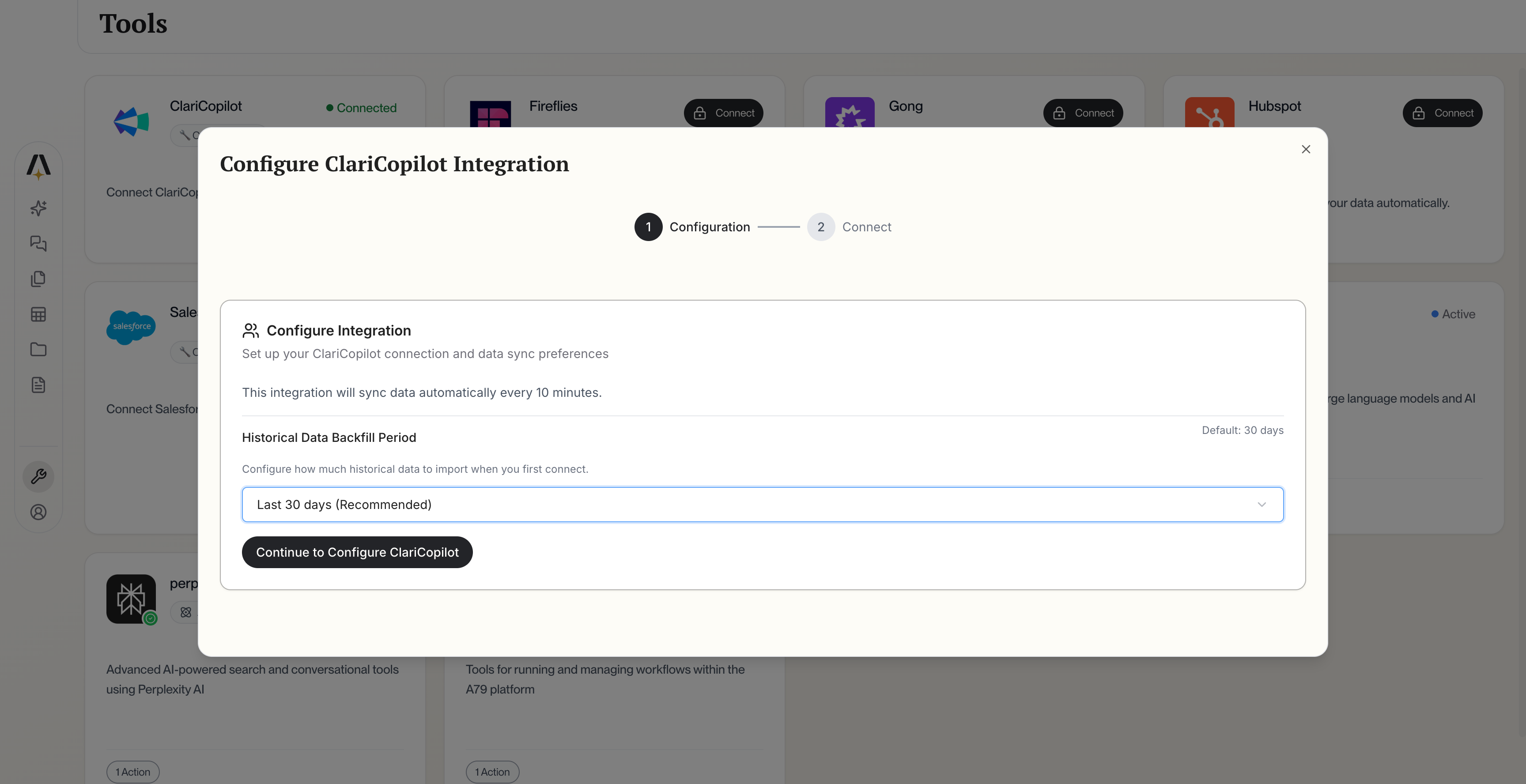 Select which teams and call types to include in the sync.
AmpUp will import your Clari Copilot calls. This typically takes 2-4 hours.
## Configuration Options
After connecting, you'll see the field mapping interface where you can configure which call data syncs from Clari Copilot.
Select which teams and call types to include in the sync.
AmpUp will import your Clari Copilot calls. This typically takes 2-4 hours.
## Configuration Options
After connecting, you'll see the field mapping interface where you can configure which call data syncs from Clari Copilot.
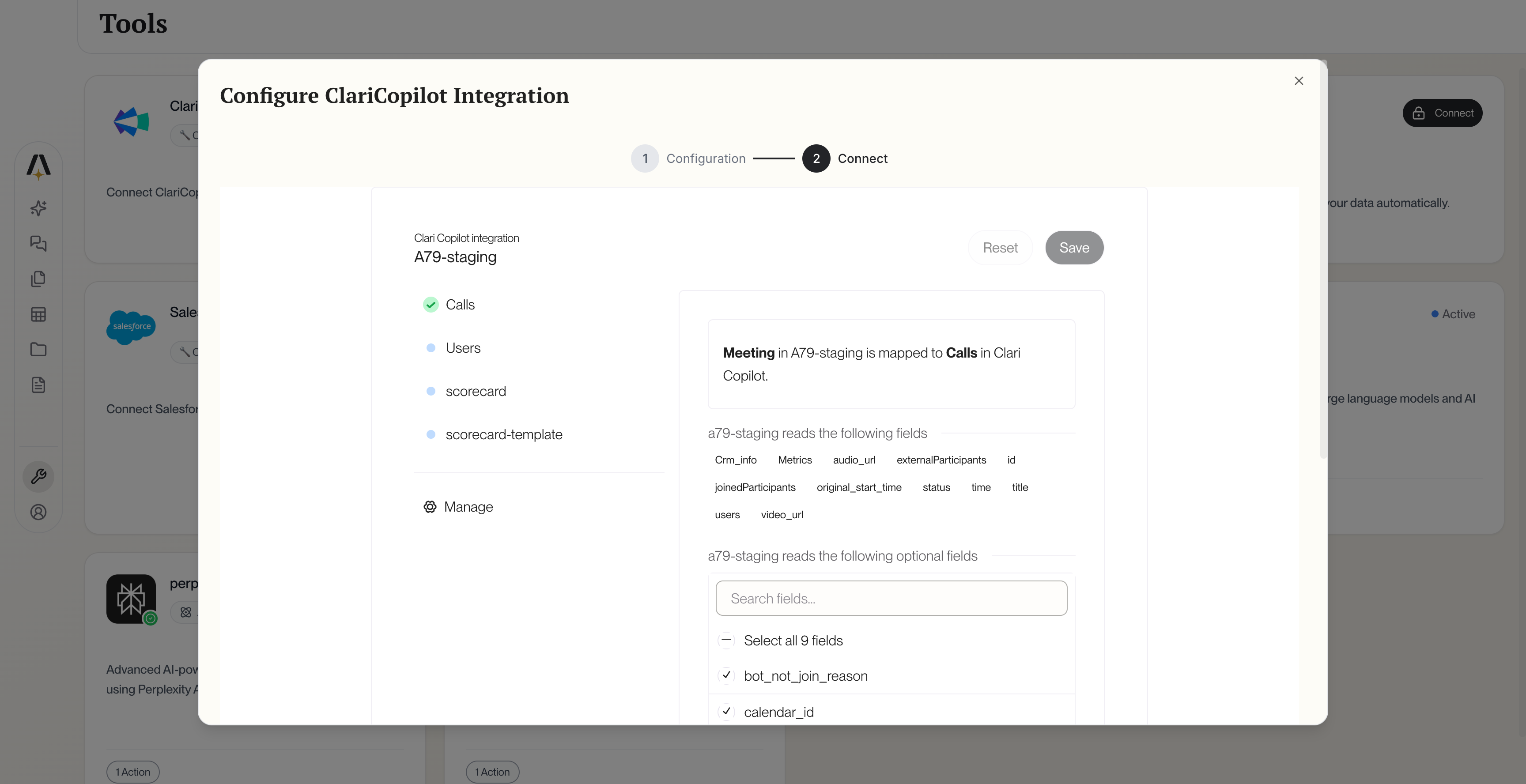 ### Team Selection
Choose which teams' calls to import:
1. Go to **Settings** → **Integrations** → **Clari Copilot** → **Teams**
2. Enable or disable teams as needed
3. New calls from enabled teams sync automatically
### Call Filters
| Filter | Options |
| ----------------- | ----------------------------------- |
| **Call Duration** | Minimum length (default: 5 minutes) |
| **Call Types** | External, internal, or both |
| **Date Range** | How far back to import |
### Historical Import
Select your initial import range:
* **30 days** - Quick setup
* **90 days** - Recommended
* **6 months** - Extended history
* **1 year** - Full history
## How AmpUp Enhances Clari Copilot
AmpUp's AI goes beyond surface metrics to understand why deals win or lose.
Each rep gets individualized feedback based on their specific calls and patterns.
Alex uses call history to prepare reps for upcoming meetings with the same accounts.
Maya creates practice scenarios targeting each rep's growth areas.
## Sync Status & Troubleshooting
### Check Sync Status
View sync status at **Settings** → **Integrations** → **Clari Copilot** → **Status**.
| Status | Meaning |
| ------------------ | ---------------------- |
| ✅ **Connected** | Integration active |
| 🔄 **Syncing** | Import in progress |
| ✅ **Real-time** | Live sync enabled |
| ⚠️ **Warning** | Partial sync or delay |
| ❌ **Disconnected** | Reauthorization needed |
### Common Issues
* Wait for Clari Copilot to finish processing the call (up to 2 hours)
* Verify the call meets minimum duration requirements
* Check that the team is included in sync settings
* Transcripts require clear audio quality
* Very short calls may not be transcribed
* Check if the call was recorded with transcription enabled
OAuth tokens periodically expire. Click **Reconnect** in integration settings to reauthorize.
If you have both Clari Copilot and another conversation intelligence tool connected, AmpUp deduplicates calls based on meeting time and participants.
## Disconnect Clari Copilot
To remove the integration:
1. Go to **Settings** → **Integrations** → **Clari Copilot**
2. Click **Disconnect**
3. Confirm disconnection
Disconnecting stops new call imports immediately. Previously synced data remains in AmpUp.
## FAQ
Yes, but we recommend connecting only one conversation intelligence platform to avoid duplicate calls and confusion.
This integration is specifically for Clari Copilot (conversation intelligence). Clari Revenue Platform integration is on our roadmap.
AmpUp imports battle card triggers as additional context but provides its own AI-powered coaching recommendations.
Your data remains in Clari Copilot. AmpUp creates a copy for analysis. Disconnecting AmpUp doesn't affect your Clari Copilot data.
### Team Selection
Choose which teams' calls to import:
1. Go to **Settings** → **Integrations** → **Clari Copilot** → **Teams**
2. Enable or disable teams as needed
3. New calls from enabled teams sync automatically
### Call Filters
| Filter | Options |
| ----------------- | ----------------------------------- |
| **Call Duration** | Minimum length (default: 5 minutes) |
| **Call Types** | External, internal, or both |
| **Date Range** | How far back to import |
### Historical Import
Select your initial import range:
* **30 days** - Quick setup
* **90 days** - Recommended
* **6 months** - Extended history
* **1 year** - Full history
## How AmpUp Enhances Clari Copilot
AmpUp's AI goes beyond surface metrics to understand why deals win or lose.
Each rep gets individualized feedback based on their specific calls and patterns.
Alex uses call history to prepare reps for upcoming meetings with the same accounts.
Maya creates practice scenarios targeting each rep's growth areas.
## Sync Status & Troubleshooting
### Check Sync Status
View sync status at **Settings** → **Integrations** → **Clari Copilot** → **Status**.
| Status | Meaning |
| ------------------ | ---------------------- |
| ✅ **Connected** | Integration active |
| 🔄 **Syncing** | Import in progress |
| ✅ **Real-time** | Live sync enabled |
| ⚠️ **Warning** | Partial sync or delay |
| ❌ **Disconnected** | Reauthorization needed |
### Common Issues
* Wait for Clari Copilot to finish processing the call (up to 2 hours)
* Verify the call meets minimum duration requirements
* Check that the team is included in sync settings
* Transcripts require clear audio quality
* Very short calls may not be transcribed
* Check if the call was recorded with transcription enabled
OAuth tokens periodically expire. Click **Reconnect** in integration settings to reauthorize.
If you have both Clari Copilot and another conversation intelligence tool connected, AmpUp deduplicates calls based on meeting time and participants.
## Disconnect Clari Copilot
To remove the integration:
1. Go to **Settings** → **Integrations** → **Clari Copilot**
2. Click **Disconnect**
3. Confirm disconnection
Disconnecting stops new call imports immediately. Previously synced data remains in AmpUp.
## FAQ
Yes, but we recommend connecting only one conversation intelligence platform to avoid duplicate calls and confusion.
This integration is specifically for Clari Copilot (conversation intelligence). Clari Revenue Platform integration is on our roadmap.
AmpUp imports battle card triggers as additional context but provides its own AI-powered coaching recommendations.
Your data remains in Clari Copilot. AmpUp creates a copy for analysis. Disconnecting AmpUp doesn't affect your Clari Copilot data.