> ## Documentation Index
> Fetch the complete documentation index at: https://docs.ampup.ai/llms.txt
> Use this file to discover all available pages before exploring further.
# AmpUp Notetaker
> Set up the AmpUp Notetaker to automatically record, transcribe, and analyze your meetings
The AmpUp Notetaker joins your meetings automatically, records them, and provides AI-powered analysis — coaching insights, action items, and meeting summaries — all without any manual effort.
## How It Works
An AmpUp admin enables the Notetaker for your organization. Once enabled, every user in the org can connect their calendar and start using it.
If you don't see the Notetaker option in your settings, ask your AmpUp admin to enable it for your organization.
Go to **Settings** → **Personal Tools** and connect your **Google Calendar** or **Outlook Calendar**.
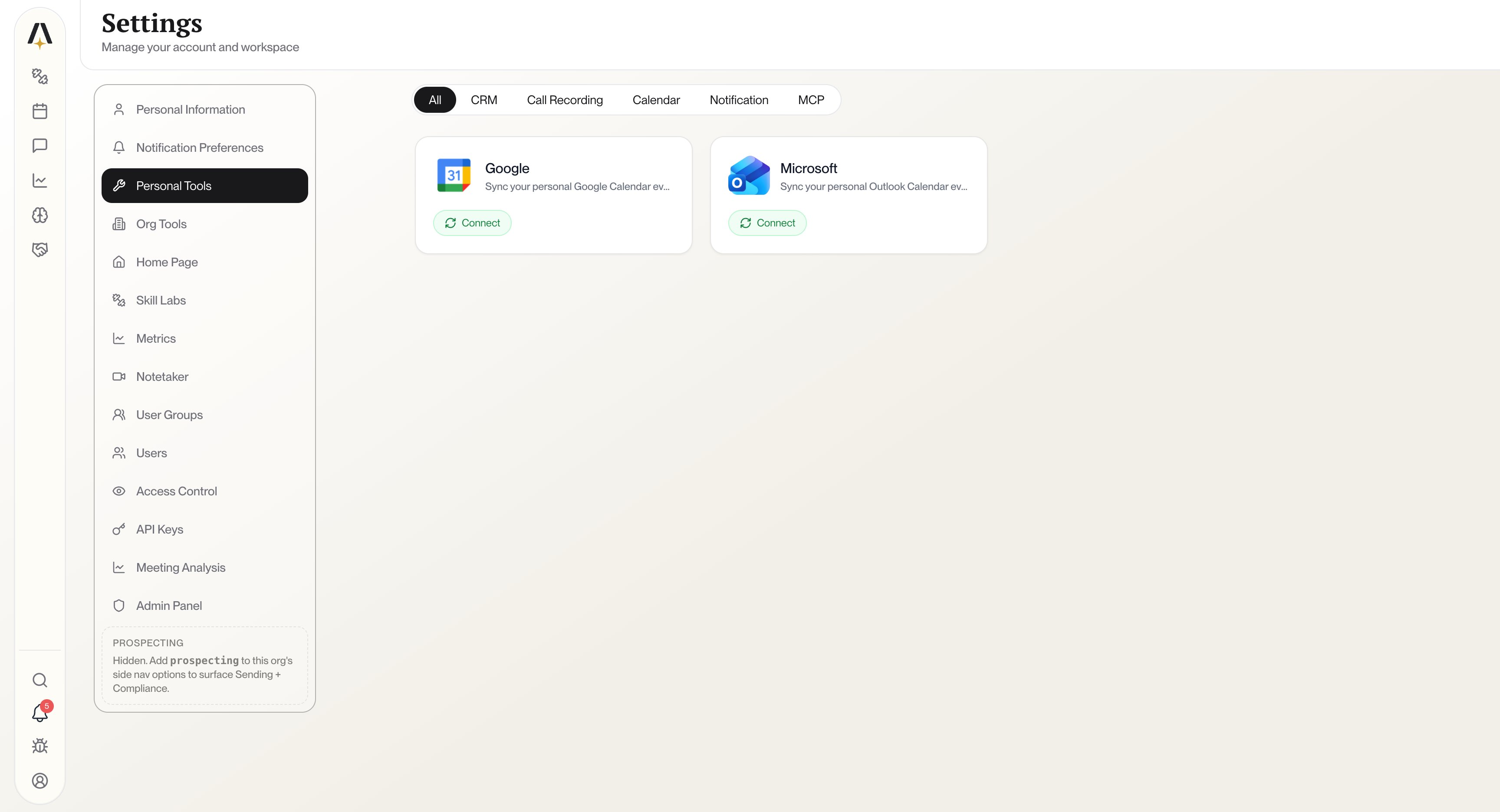 Click **Connect** on your calendar provider. You'll see a configuration dialog where you can choose how much historical data to import.
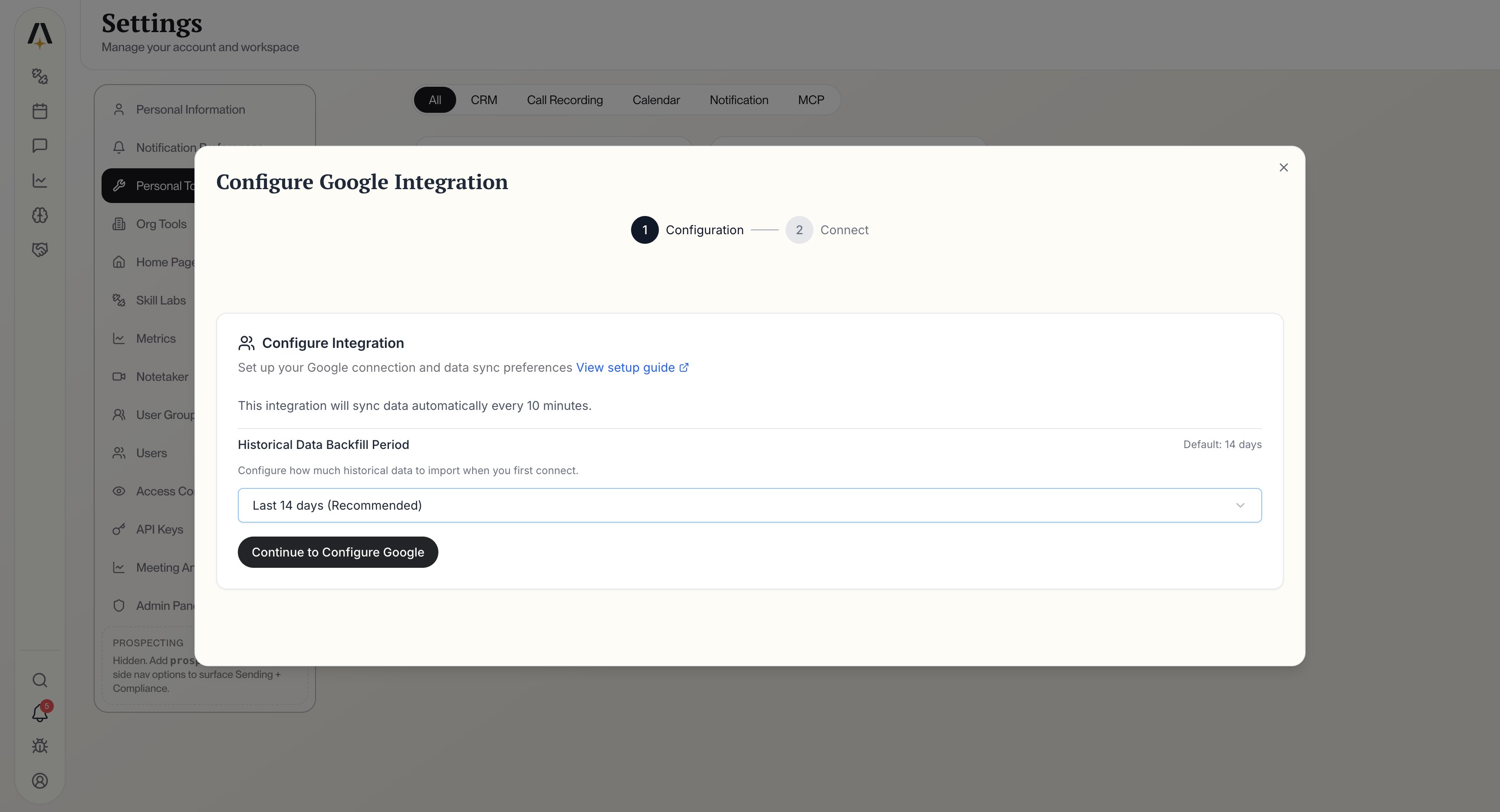 Select your preferred backfill period (default is **Last 14 days**), then click **Continue to Configure Google**. You'll be redirected to sign in with your Google or Microsoft account and grant AmpUp access to your calendar.
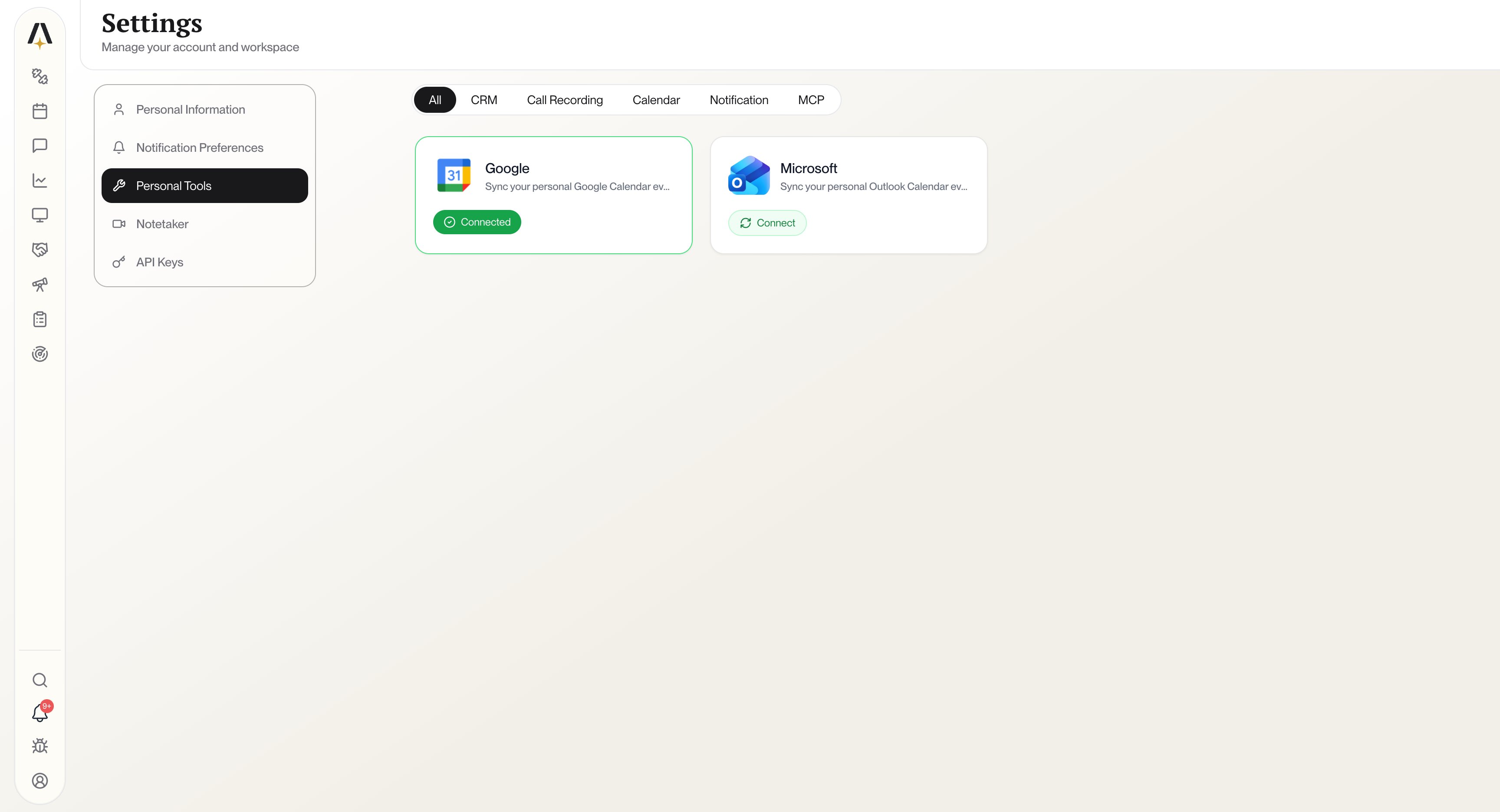
Once connected, you'll see a green **Connected** badge on your calendar card.
Select your preferred backfill period (default is **Last 14 days**), then click **Continue to Configure Google**. You'll be redirected to sign in with your Google or Microsoft account and grant AmpUp access to your calendar.
Once connected, you'll see a green **Connected** badge on your calendar card.
 Within **30 minutes** of connecting your calendar, all your upcoming meetings will appear on the **Meetings** page under the **My meetings** tab. The Notetaker will automatically join your future meetings.
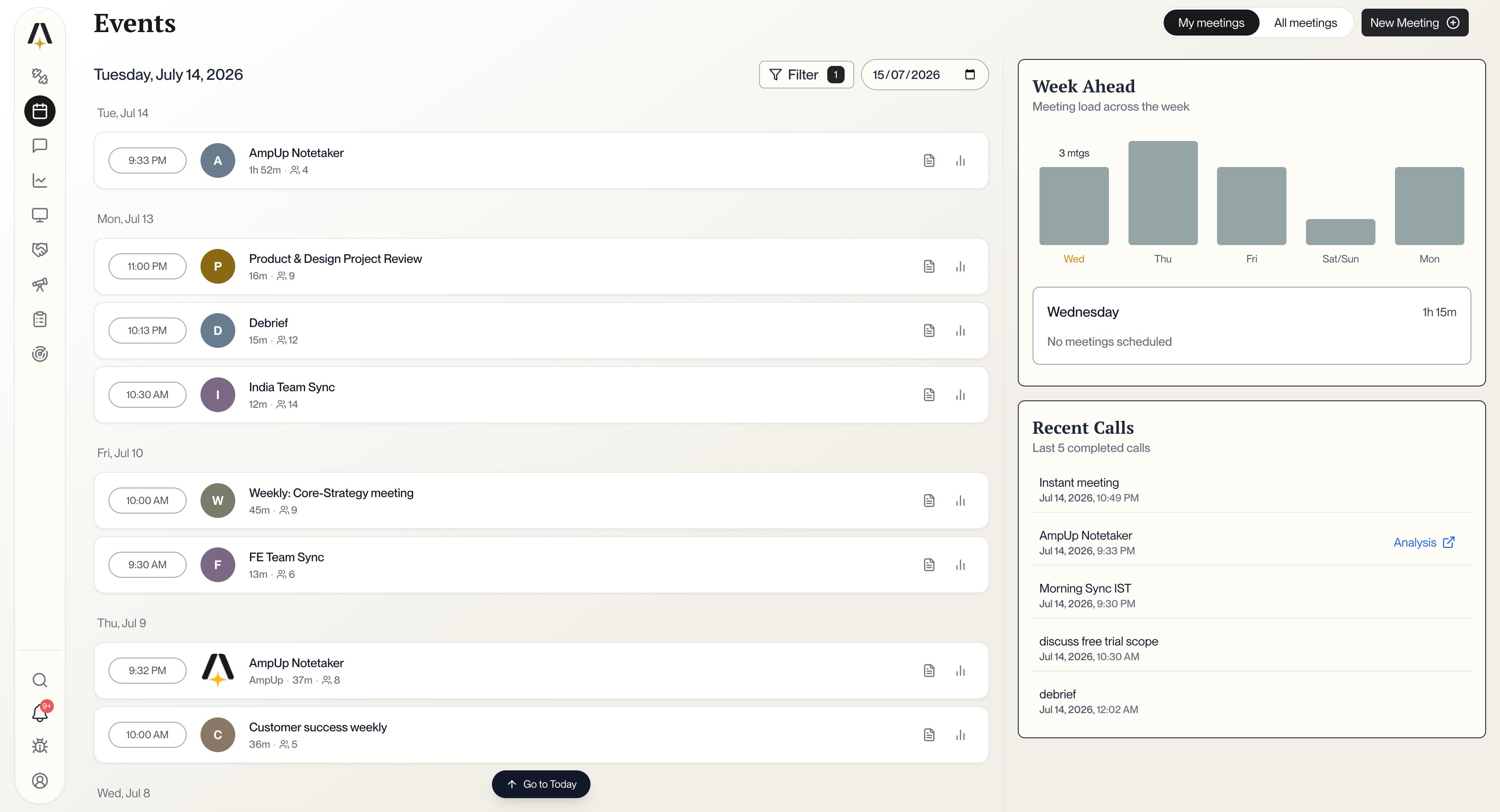 From this page you can:
* View upcoming meetings and past recordings
* See the **Week Ahead** meeting load at a glance
* Access **pre-meeting briefings** and **post-meeting analysis** for each call
* Upload recordings manually with the **New Meeting** button
## What You Get After Each Meeting
Once the Notetaker records a meeting, AmpUp automatically generates:
A concise overview of what was discussed, key decisions made, and topics covered.
Automatically extracted follow-up tasks with owners, so nothing falls through the cracks.
AI-powered feedback on your performance — what went well and specific areas to improve.
A complete, searchable transcript with speaker labels for easy reference.
## Supported Platforms
The AmpUp Notetaker works with:
| Platform | Support |
| ------------------- | ----------------- |
| **Google Meet** | ✅ Fully supported |
| **Zoom** | ✅ Fully supported |
| **Microsoft Teams** | ✅ Fully supported |
## FAQ
No. Once your calendar is connected, the Notetaker automatically joins all your meetings. No manual invites needed.
Yes. You can configure which meetings the Notetaker should skip from the **Notetaker** section in Settings.
Your meetings typically appear within 30 minutes of connecting your calendar. The Notetaker will start joining meetings from that point forward.
You can connect both. AmpUp will sync meetings from all connected calendars.
Yes. All recordings and transcripts are encrypted in transit and at rest. AmpUp is SOC 2 Type 2 certified and never shares your data with third parties.
## Need Help?
Email our support team
Talk to our team
From this page you can:
* View upcoming meetings and past recordings
* See the **Week Ahead** meeting load at a glance
* Access **pre-meeting briefings** and **post-meeting analysis** for each call
* Upload recordings manually with the **New Meeting** button
## What You Get After Each Meeting
Once the Notetaker records a meeting, AmpUp automatically generates:
A concise overview of what was discussed, key decisions made, and topics covered.
Automatically extracted follow-up tasks with owners, so nothing falls through the cracks.
AI-powered feedback on your performance — what went well and specific areas to improve.
A complete, searchable transcript with speaker labels for easy reference.
## Supported Platforms
The AmpUp Notetaker works with:
| Platform | Support |
| ------------------- | ----------------- |
| **Google Meet** | ✅ Fully supported |
| **Zoom** | ✅ Fully supported |
| **Microsoft Teams** | ✅ Fully supported |
## FAQ
No. Once your calendar is connected, the Notetaker automatically joins all your meetings. No manual invites needed.
Yes. You can configure which meetings the Notetaker should skip from the **Notetaker** section in Settings.
Your meetings typically appear within 30 minutes of connecting your calendar. The Notetaker will start joining meetings from that point forward.
You can connect both. AmpUp will sync meetings from all connected calendars.
Yes. All recordings and transcripts are encrypted in transit and at rest. AmpUp is SOC 2 Type 2 certified and never shares your data with third parties.
## Need Help?
Email our support team
Talk to our team